Overview
A tour of Temple Compute OS, the web app for designing, running and managing Horus workflows in the browser.
Temple Compute OS is the workflow platform built on Horus, used from the browser. It lets you build a workflow on a visual canvas, run it, inspect what each task produced, and then run the finished version at scale. Everything you can describe in YAML can be built, imported and exported here.
The UI is built around four ideas:
| Idea | What it is |
|---|---|
| Workflow | A graph of tasks and the artifacts that flow between them. You edit it on the canvas. |
| Draft | The editable version of a workflow. Opening a workflow puts you in design mode on its draft. |
| Run | One execution of the workflow. A run freezes a copy of the draft at the moment it starts, so later edits never change it. |
| Project | A place for workflow versions you have finished designing. From a project you launch campaigns, which are batches of runs. |
A typical path through the app looks like this:
- Create or import a workflow and build it in design mode.
- Run it and check each task's status, logs and outputs in run view.
- Open the files it read and wrote in the artifacts panel.
- When it works, pin that version to a project and launch campaigns from it.
Navigation
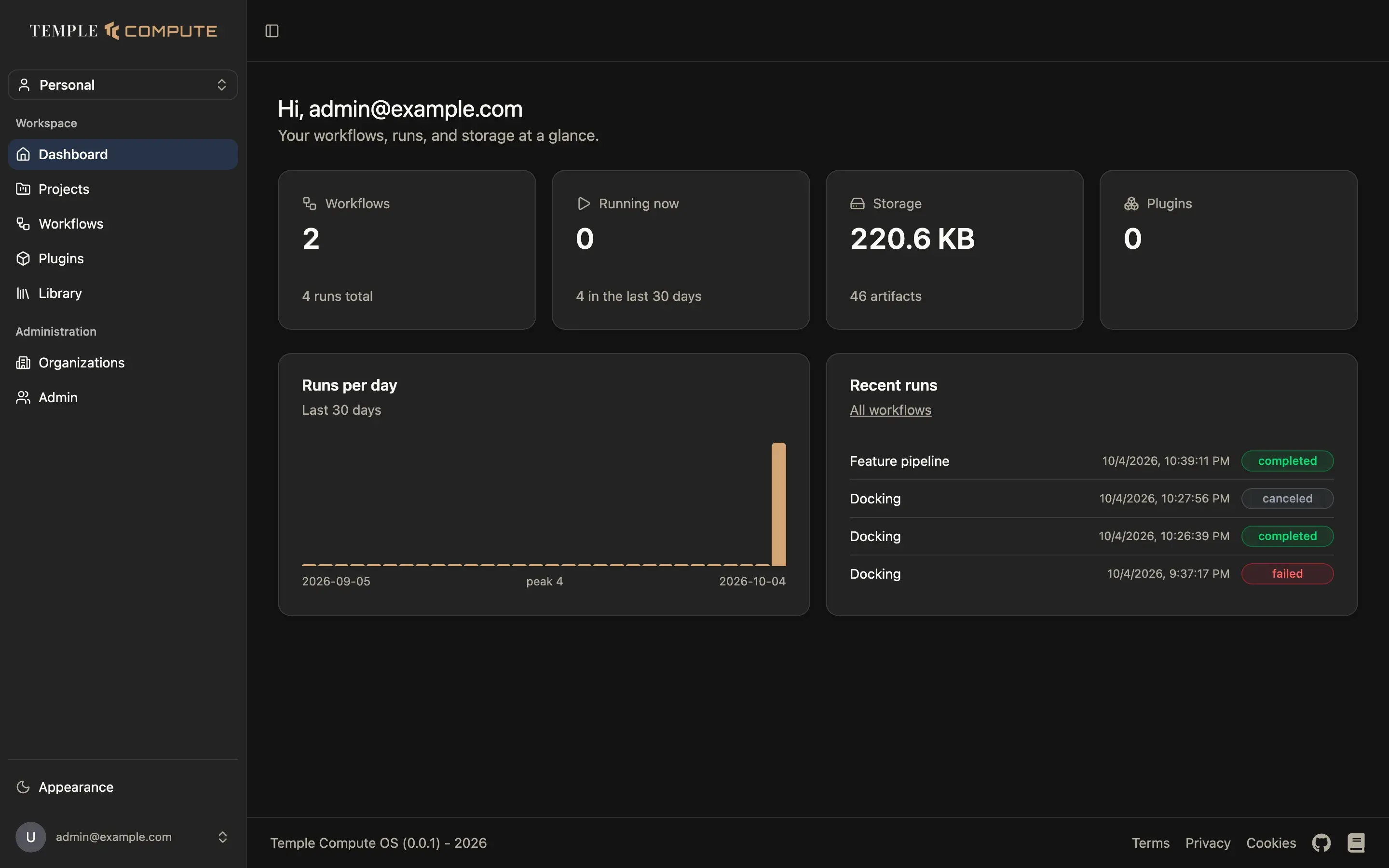
The sidebar is on the left:
- Organization switcher (top). Sets the active organization. Workflows, projects and plugins are listed for the active organization only. Everyone has a Personal organization.
- Workspace
- Dashboard: your workflow count, runs in progress, storage used, plugin environments, a 30-day chart of runs per day, and your most recent runs. Click a recent run to open it on the canvas.
- Projects: see Projects and campaigns.
- Workflows: every workflow in the active organization.
- Plugins and Library: see Library and plugins.
- Administration: Organizations (members, invites, roles), and Admin for superusers.
- Appearance and your account menu (bottom): light/dark theme, user settings and log out.
The workflows list
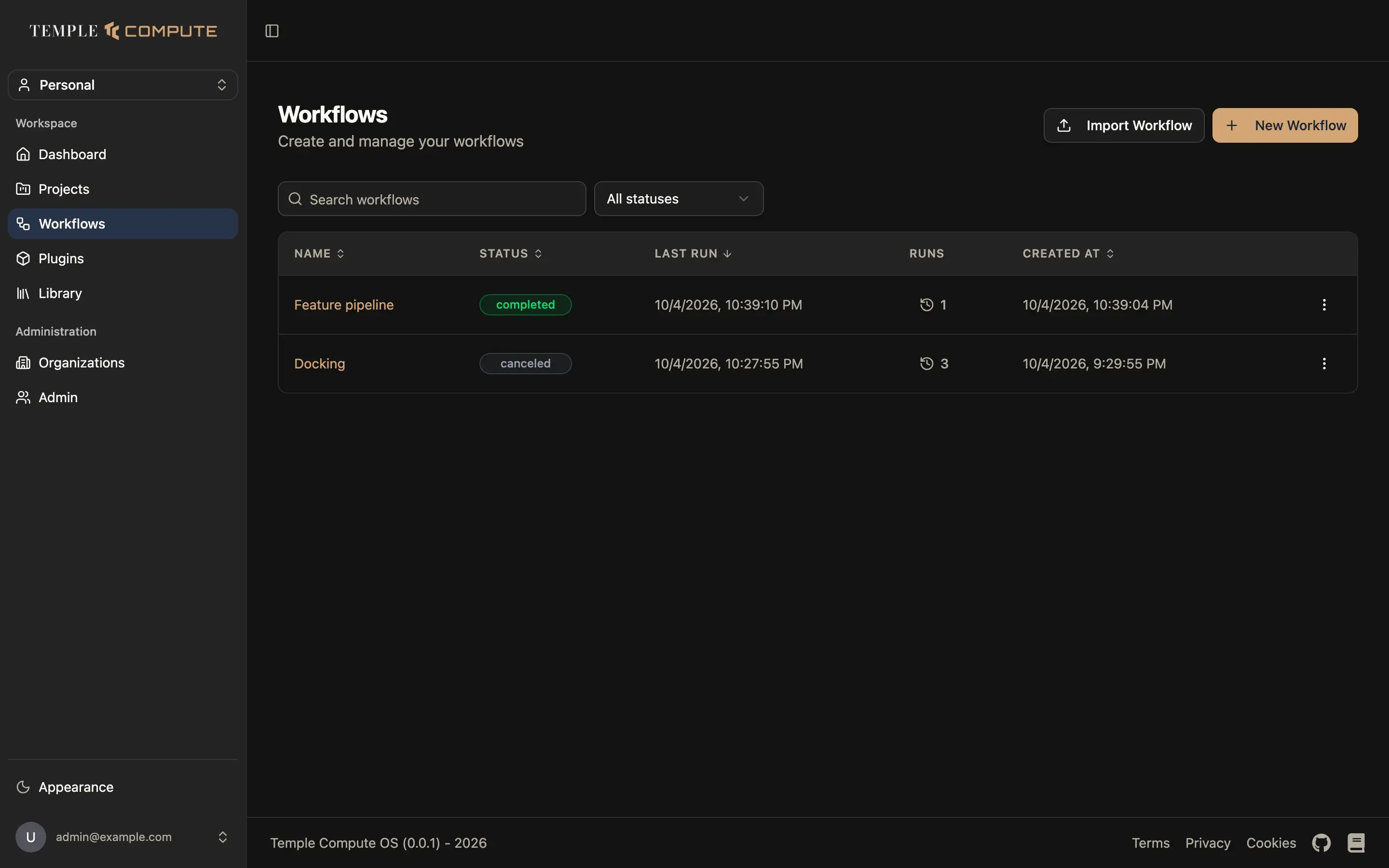
Workflows lists every workflow with its last run status and when it last ran. Search by name, or filter by the status of the last run (idle, running, queued, completed, failed, canceled, partial). The search and filter are kept in the URL, so you can share or bookmark a filtered view. While anything is running, the list refreshes on its own.
From here you can:
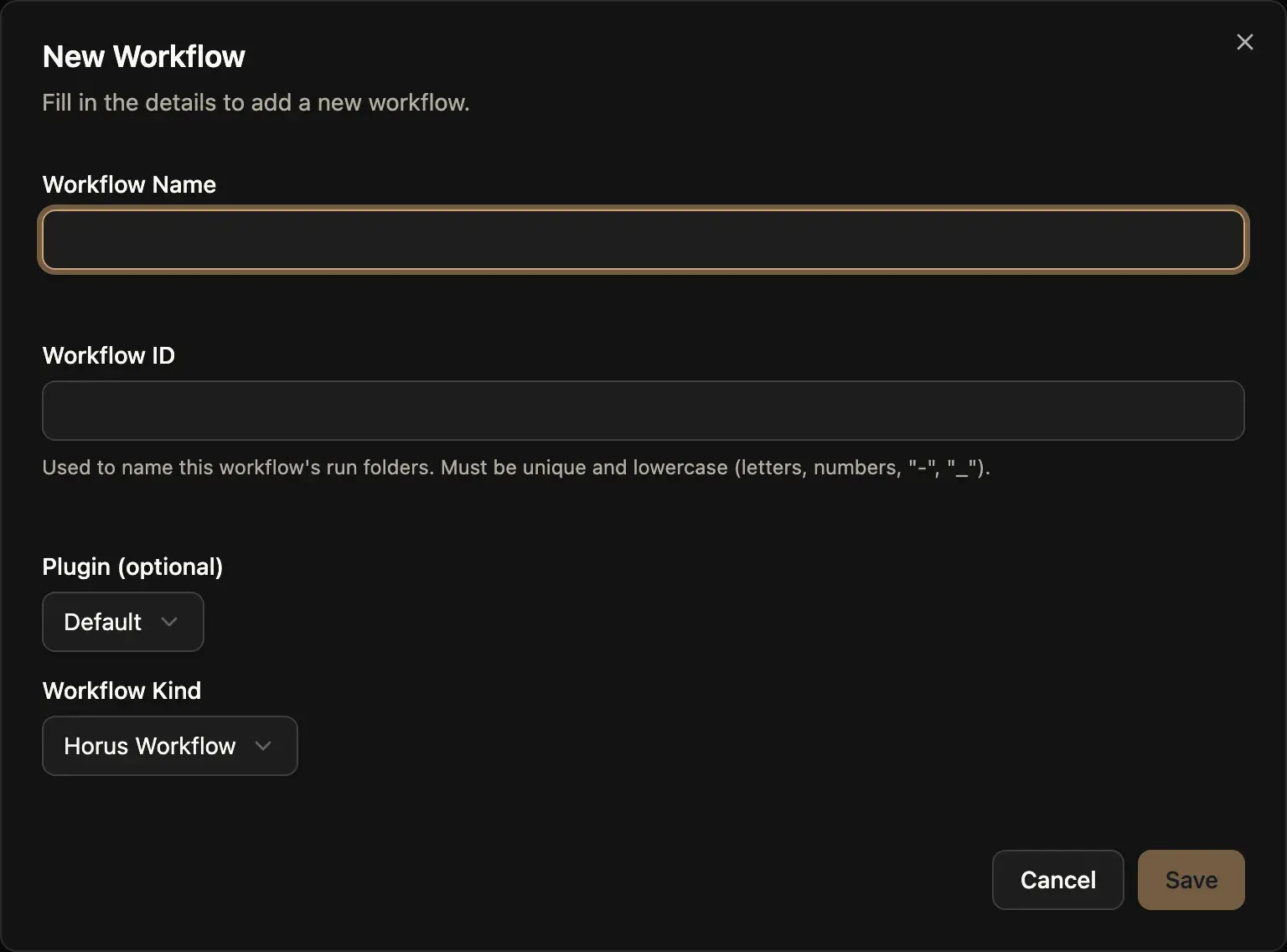
- New Workflow: start an empty workflow. Give it a name, and optionally pick a plugin environment (which decides the task and artifact kinds available) and a workflow kind.
- Import Workflow: upload a workflow YAML file, or a
.zipmade withhorus packageto bring its input files too. Blocks of an imported workflow are arranged automatically the first time you open it.
Click a workflow to open it on the canvas.