Projects and campaigns
Pin a finished workflow version to a project, launch campaigns of runs against it, and follow how the batch is going.
The canvas is where you design and try out a workflow. Projects are where you run the finished version for real.
| Term | What it is |
|---|---|
| Project | A shared space in an organization that holds pinned workflows and the campaigns launched from them. |
| Pinned workflow | A frozen, numbered version (v1, v2, …) of a workflow. Later edits to the draft do not change it. |
| Campaign | A batch of runs of one pinned workflow, all with the same inputs. |
The flow is: design a workflow → pin it to a project → launch a campaign → follow its runs and collect the results.
Creating a project
Open Projects in the sidebar and click New project. Give it a name.
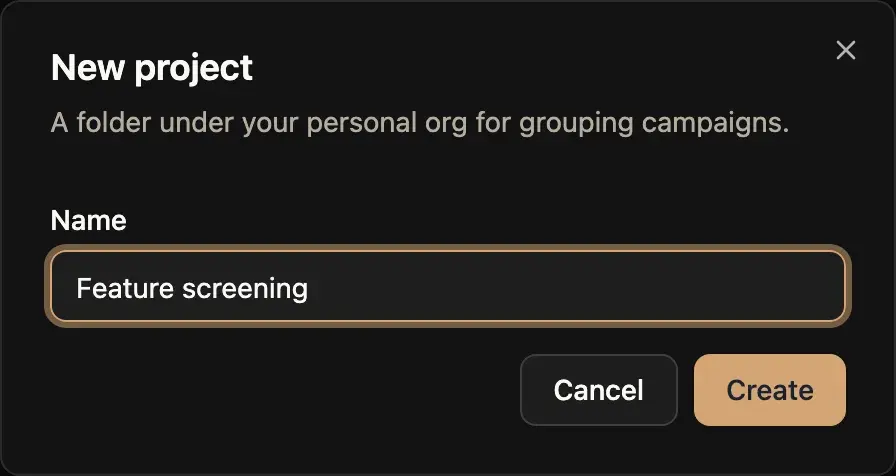
A project belongs to the organization that is active in the sidebar switcher, and everyone in that organization can see it. The projects list shows only the active organization's projects, with how many workflows, campaigns and runs each one has. Use Search projects to filter by name.
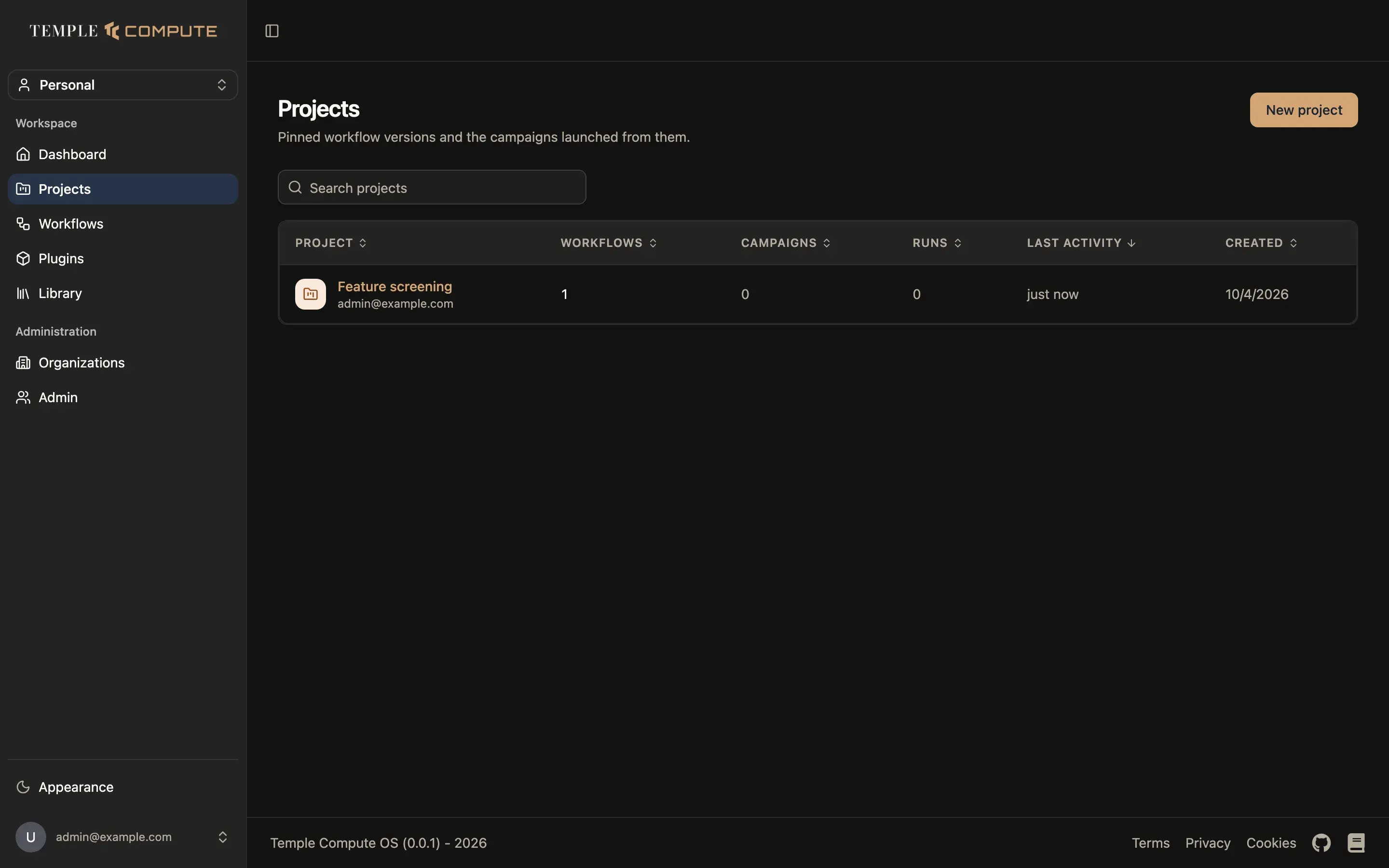
You can also create a project on the fly while pinning a workflow (see below).
Pinning a workflow to a project
Open the workflow in design mode and click Add to project (the folder icon in the header, or Add to project in the More menu on a narrow screen).
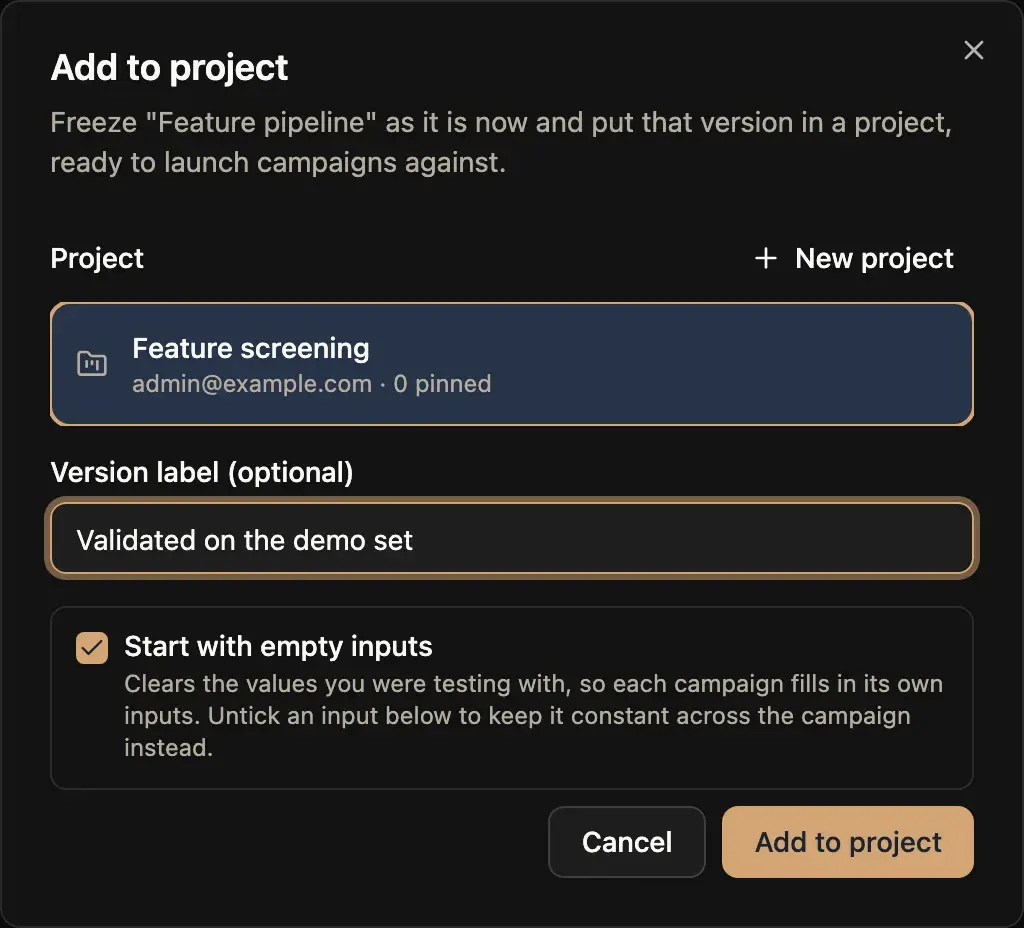
- Pick a Project, or click New project to create one here.
- Optionally add a Version label that says what makes this version special, for example "Validated on the Q3 set".
- Decide what happens to the inputs:
- With Start with empty inputs ticked (the default), the values you were testing with are cleared, so each campaign fills in its own. Untick a single input in the list below the checkbox to keep it fixed for every campaign instead.
- Untick Start with empty inputs to keep every input as it is.
- Click Add to project.
The app freezes the draft as it is now into a new version and pins it to the project. You can keep editing the draft afterwards; pin it again to add the next version.
The project page
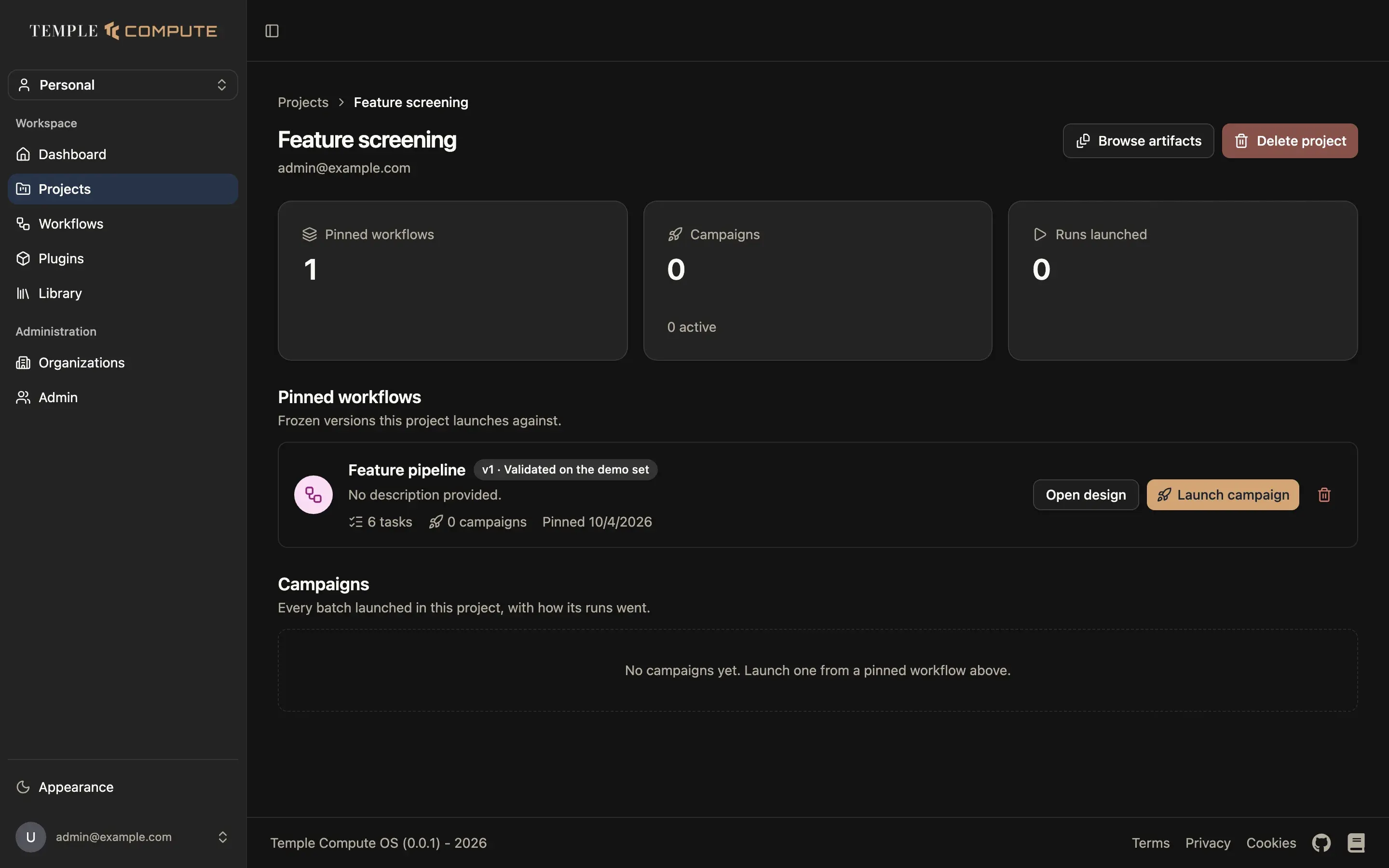
A project page shows:
- Pinned workflows, Campaigns (and how many are active) and Runs launched (and how many are in flight) at the top.
- Pinned workflows: each frozen version, with its label, task count,
campaign count and the date it was pinned. Each row has:
- Open design: open the source workflow's draft on the canvas.
- Launch campaign: start a new campaign from this version.
- The bin icon: remove the version from the project.
- Campaigns: every campaign in the project, with its state, how many runs it has launched, a tally of run statuses, and a flag when something needs attention.
Browse artifacts opens the Artifacts page filtered to this project. Delete project permanently deletes the project, its pinned workflows and all its campaigns.
Launching a campaign
Click Launch campaign on a pinned workflow.
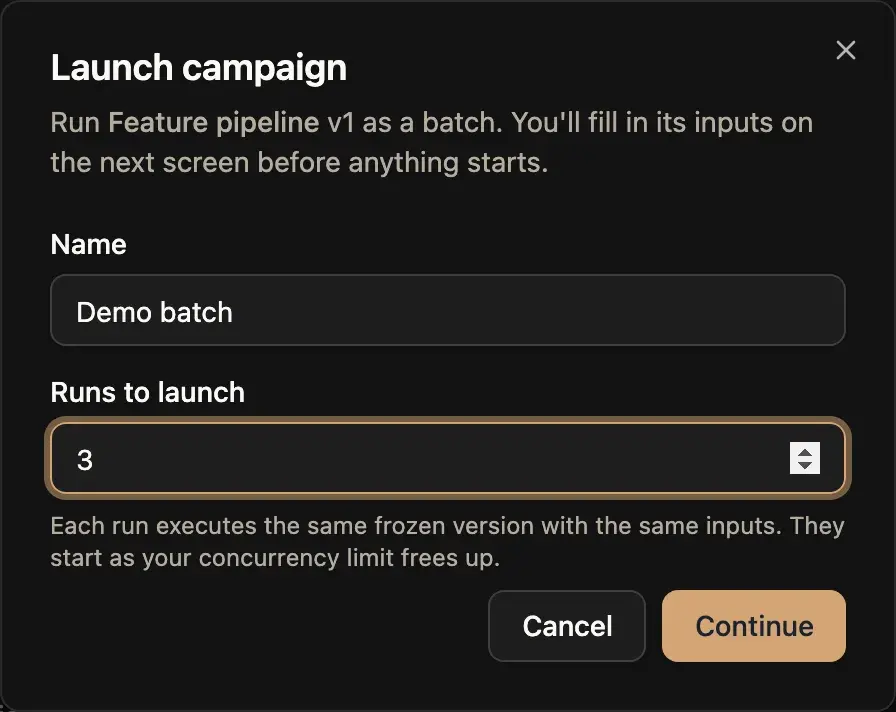
- Give the campaign a Name (it defaults to the workflow name and version), and choose how many Runs to launch. Each run executes the same frozen version with the same inputs. Click Continue.
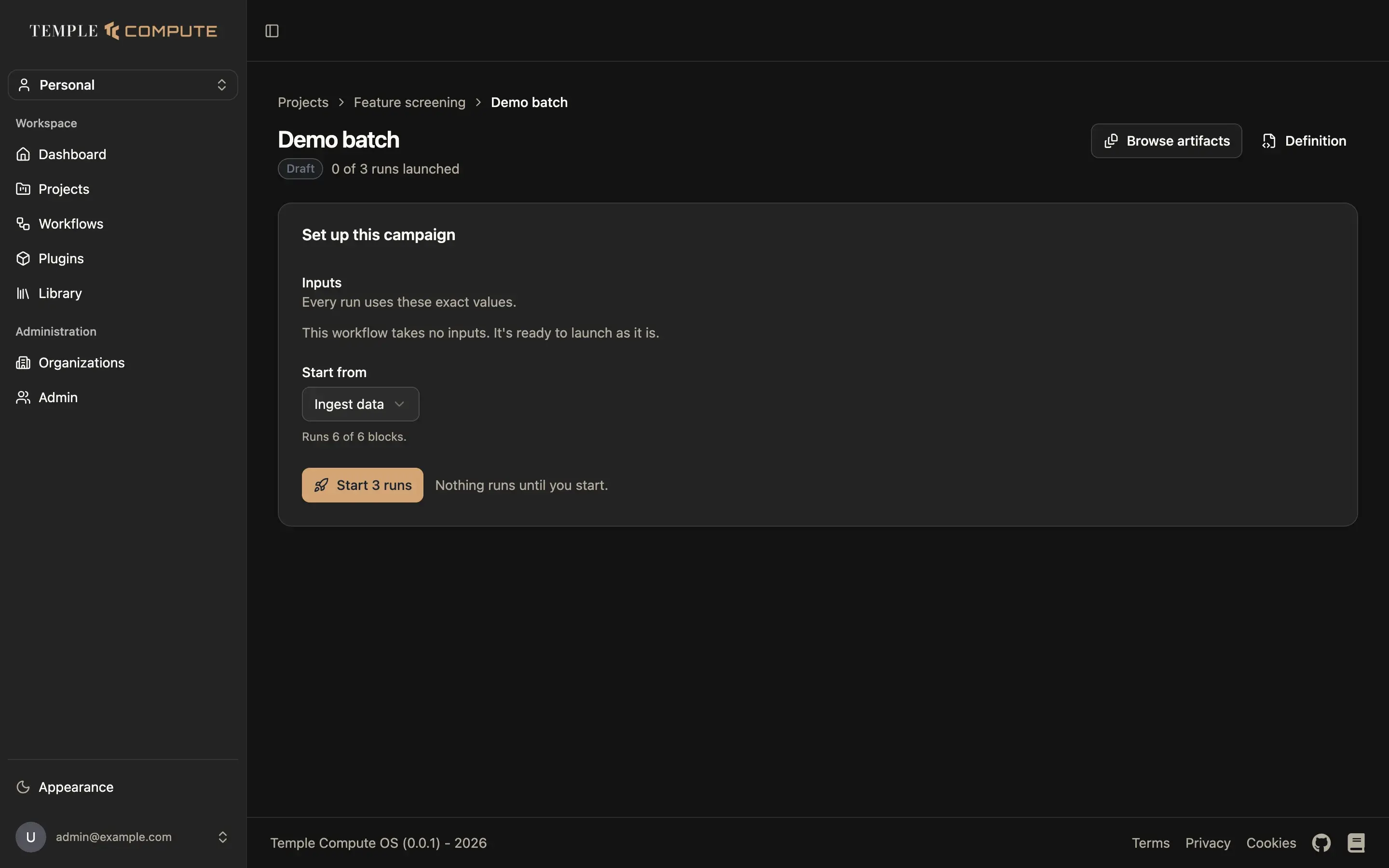
- The campaign opens in the Draft state. Nothing runs yet. Fill in the inputs: every input the workflow declares is shown with the same viewer as on the canvas, so a structure opens in the 3D viewer, a script in the editor and a CSV as a table. Every run uses these exact values.
- Under Start from, pick the task each run starts from. The default is the task that covers the most of the workflow, and the form says how many of the blocks that will run.
- Click Start N runs.
Following a campaign
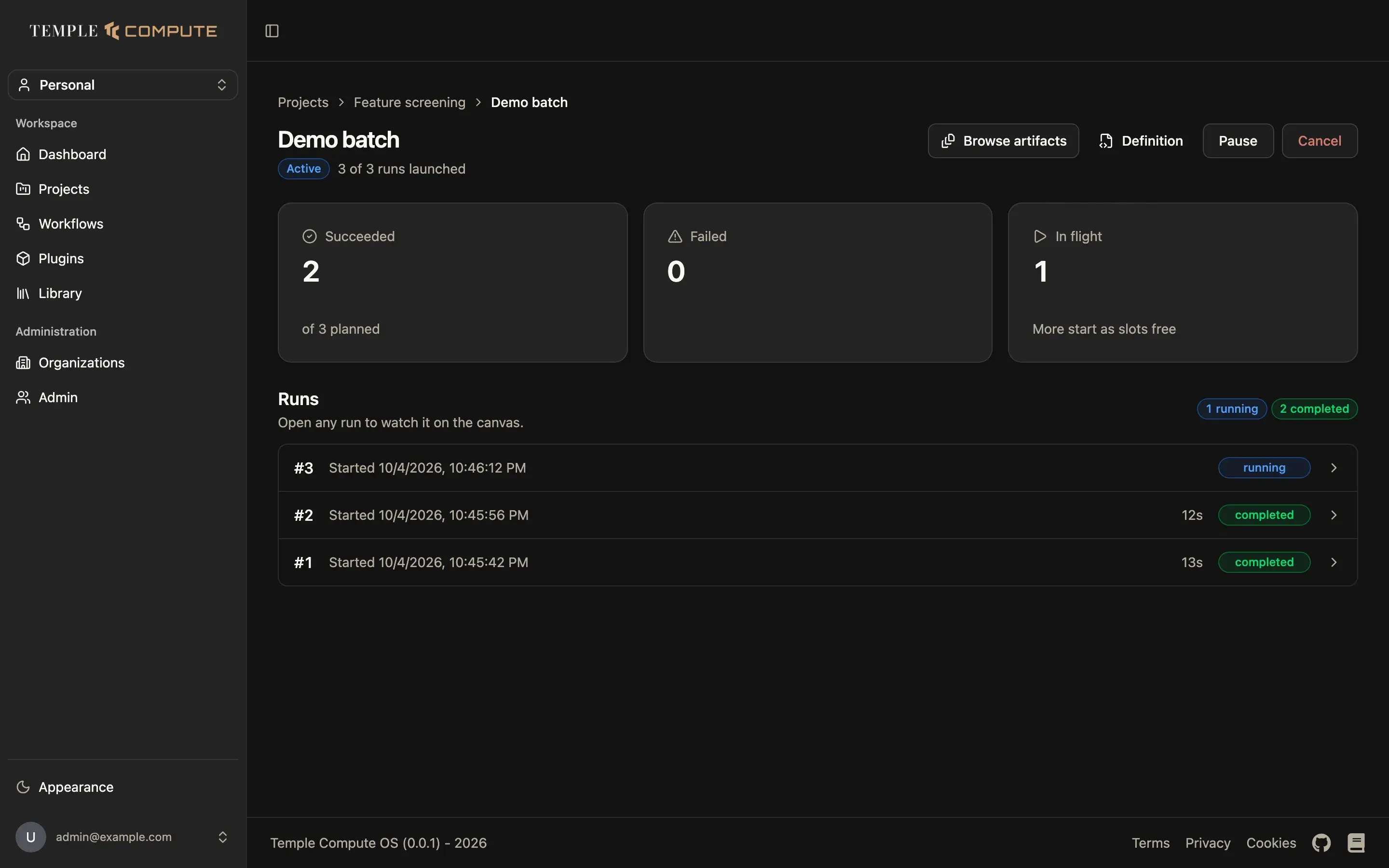
The campaign page shows how many runs Succeeded, Failed and are In flight, and lists every run with its start time, duration and status. Runs do not all start at once: more start as slots free up. The page refreshes on its own.
Click a run to open it on the canvas, in the same run view as a workflow run, with its logs, resource usage and artifacts. See Runs. Definition shows the frozen workflow the campaign runs, read-only. Browse artifacts lists every file the campaign's runs read and produced.
A campaign moves through these states:
| State | Meaning |
|---|---|
| Draft | Created, inputs not confirmed yet. Nothing has run. |
| Active | Launching and running its runs. |
| Paused | No new runs are launched. Paused by a user, or automatically, for example after repeated failures. |
| Completed | Every run has reached a final status. |
| Cancelled | Stopped by a user. |
While a campaign is active you can Pause it, and while it is paused you can Resume it. Cancel stops it for good. When the app pauses a campaign on its own, the reason is shown under the title.
Who can do what
Each member of a project has a role. A higher role can do everything a lower one can.
| Role | Can |
|---|---|
| Viewer | See the project, its pinned workflows, campaigns, runs and artifacts. |
| Runner | Also launch, start, pause, resume and cancel campaigns. |
| Builder | Also pin workflow versions to the project, remove them, and delete the project. |
Whoever creates a project is a builder in it. When you lack the role for an action, its button is turned off; hover it to see which role you need.