Artifacts
Add workflow inputs, browse what a run read and produced in the artifacts panel, preview files with the right viewer, and search artifacts across every run.
An artifact is a file, folder or value that a task reads or writes. See Core concepts for how artifacts connect tasks. In the web app you meet artifacts in three places:
- Input artifact nodes on the canvas, where you give the workflow its inputs.
- The artifacts panel, which lists every artifact of the run on screen.
- The Artifacts page, which searches artifacts across all runs and campaigns.
Workflow inputs
An input artifact is something the workflow needs before any task runs, such as
a dataset, a structure or a parameter value. To add one in design mode, pick
New input artifact in the canvas toolbar (or press A) and click the
canvas, or right-click the canvas and choose Input Artifact.
In the dialog, give the artifact an ID (how tasks refer to it), an optional display name and description, and a kind. Then either Upload a file or Write it here to set its content. Connect the node to the input port of every task that should read it.
An input can also have its own editor, such as a form or a picker, written as an HTML page that ships with the workflow. See Custom input views.
The buttons on an input node let you edit it, preview its content, expand the preview, fold it into the block that uses it, or delete it.
The artifacts panel
Click Artifacts in the workflow header (the stacked-files icon) to open the panel to the right of the canvas. It lists every artifact of the run on screen: in design mode that is the draft's inputs; in run view it is everything the run read and produced.
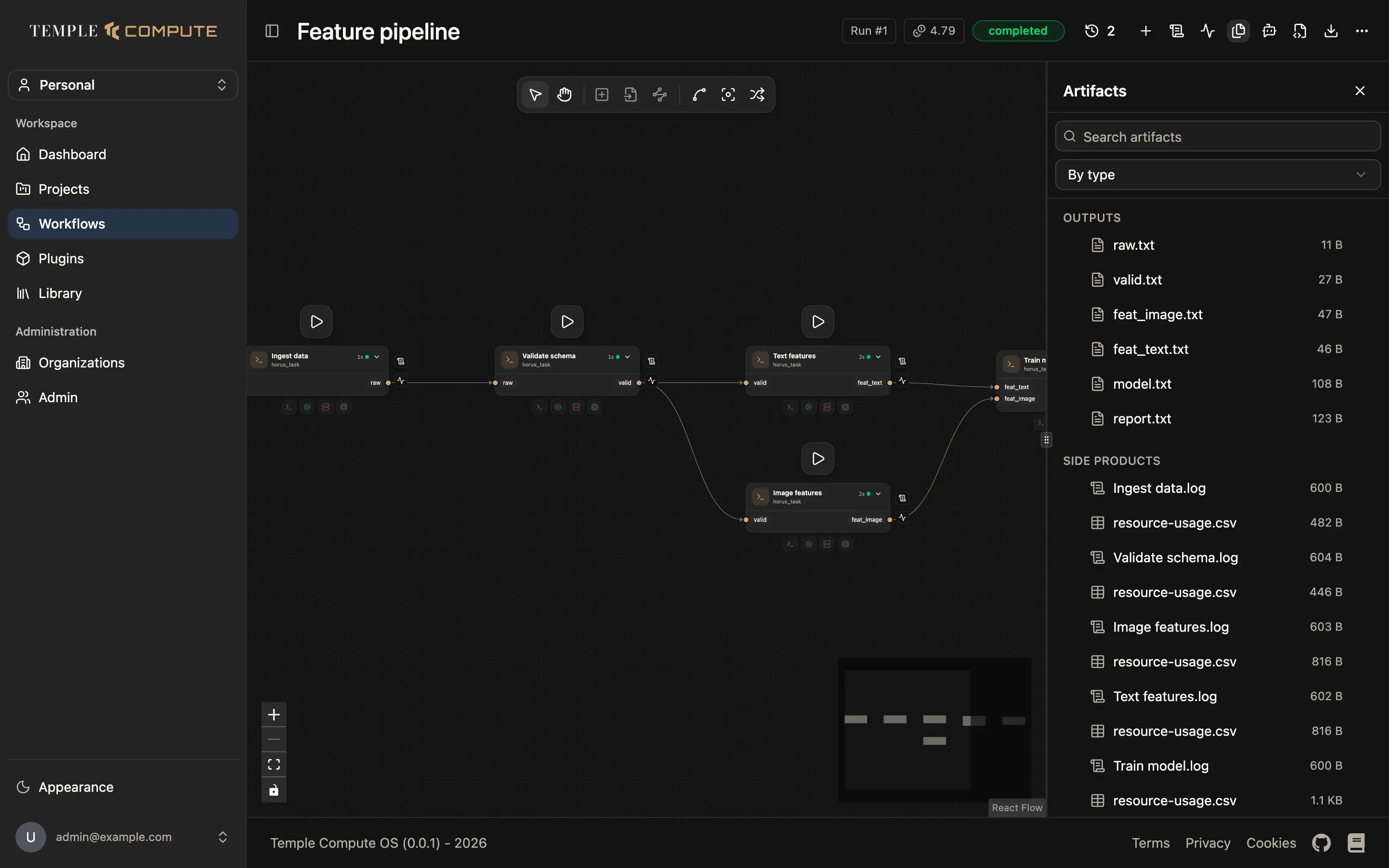
At the top of the panel:
- Search artifacts: filter by file name, artifact ID or the task that owns it.
- Group by:
- By type groups the list into Inputs, Outputs and Side
products. Side products are files a task writes as a side effect, such as
its log (
Ingest data.log) and resource trace (resource-usage.csv). - By task gives every task a section you can fold, with its inputs, outputs and side products underneath.
- By type groups the list into Inputs, Outputs and Side
products. Side products are files a task writes as a side effect, such as
its log (
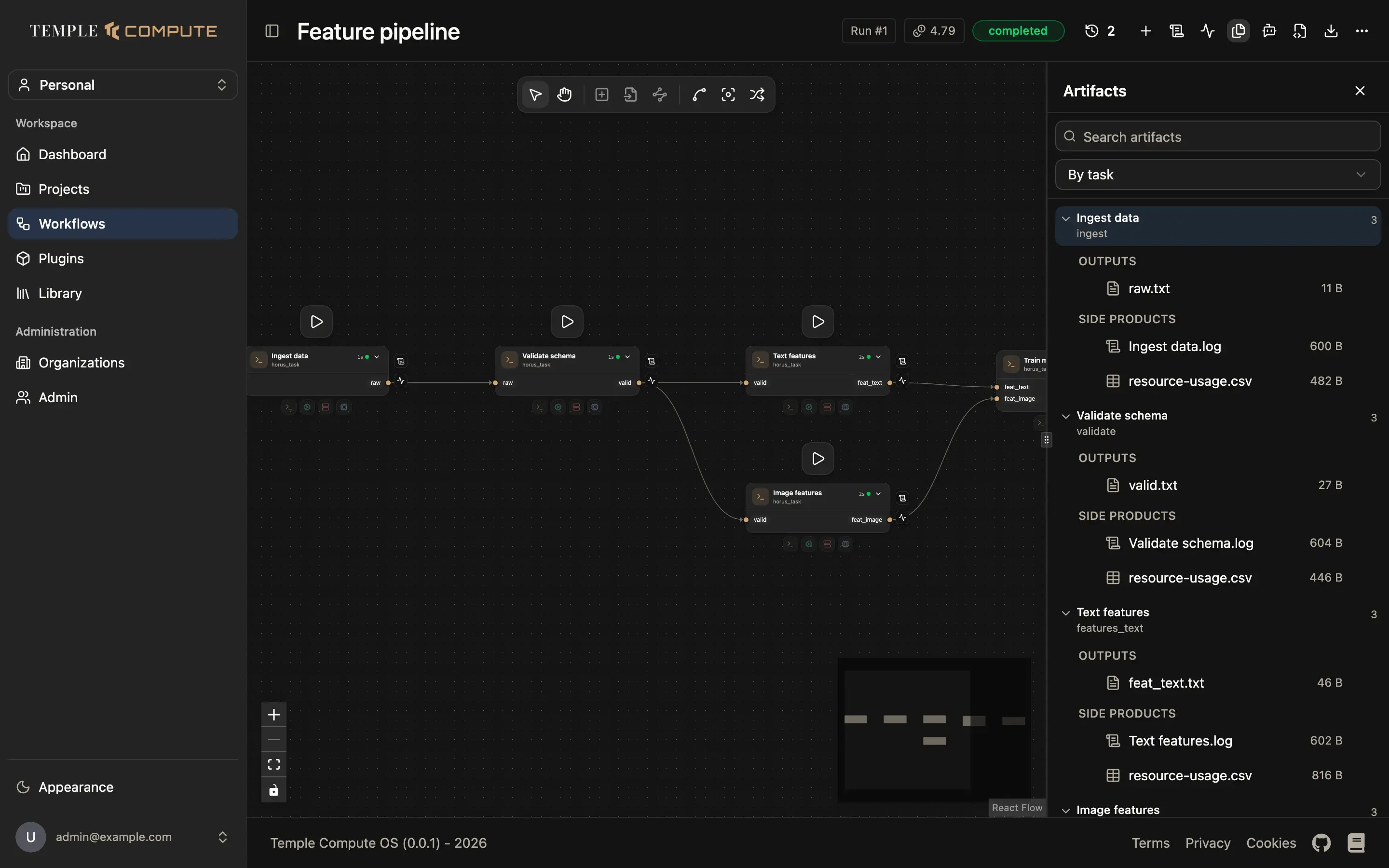
Clicking the overflow chip (+N) on a task card's side-product tray opens the
panel grouped by task, scrolled to that task.
Previewing an artifact
Click a row to open it in the preview panel. Click the expand icon on the row, or in the preview header, to see it full screen.
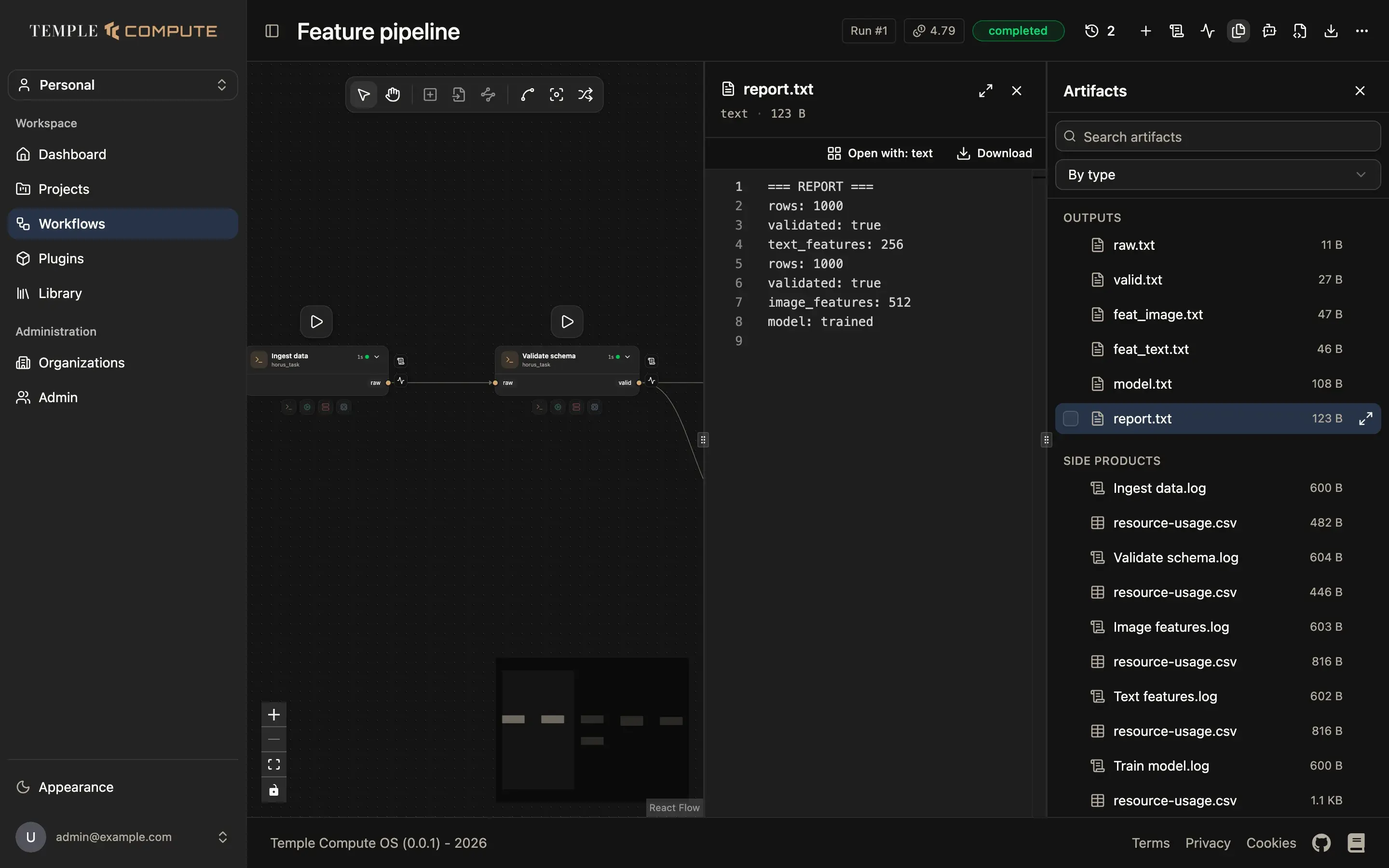
The preview picks a viewer from the artifact's kind:
| Kind | Viewer |
|---|---|
| Text, scripts, YAML, JSON | Code editor with line numbers |
| CSV | Table |
| Image | Image |
| Markdown, HTML | Rendered page |
| Folder, archive | File tree you can browse |
| Molecular structure | 3D viewer (Mol*) |
| Value | The value itself |
| Resource trace | CPU and memory charts |
| Slurm job | Job details |
Plugins can add viewers for their own artifact kinds. When more than one viewer fits, Open with in the preview header lets you switch, for example to see a rendered file as raw text. Download saves the file.
The preview stays up to date while a task is still running, so a log that a task keeps writing to grows as you watch.
Working with several artifacts
Tick the checkbox on as many rows as you like, from any task or section. A bar appears at the bottom of the panel:
- Download all downloads every selected file.
- Open together appears when every selected artifact is a kind that has a combined view. For example, several molecular structures open side by side to compare.
- Clear empties the selection.
The Artifacts page
The artifacts panel only ever shows one run. To find files across many runs, use the Artifacts page. Open it with Browse artifacts on a project or a campaign page; it opens already filtered to that project or campaign.
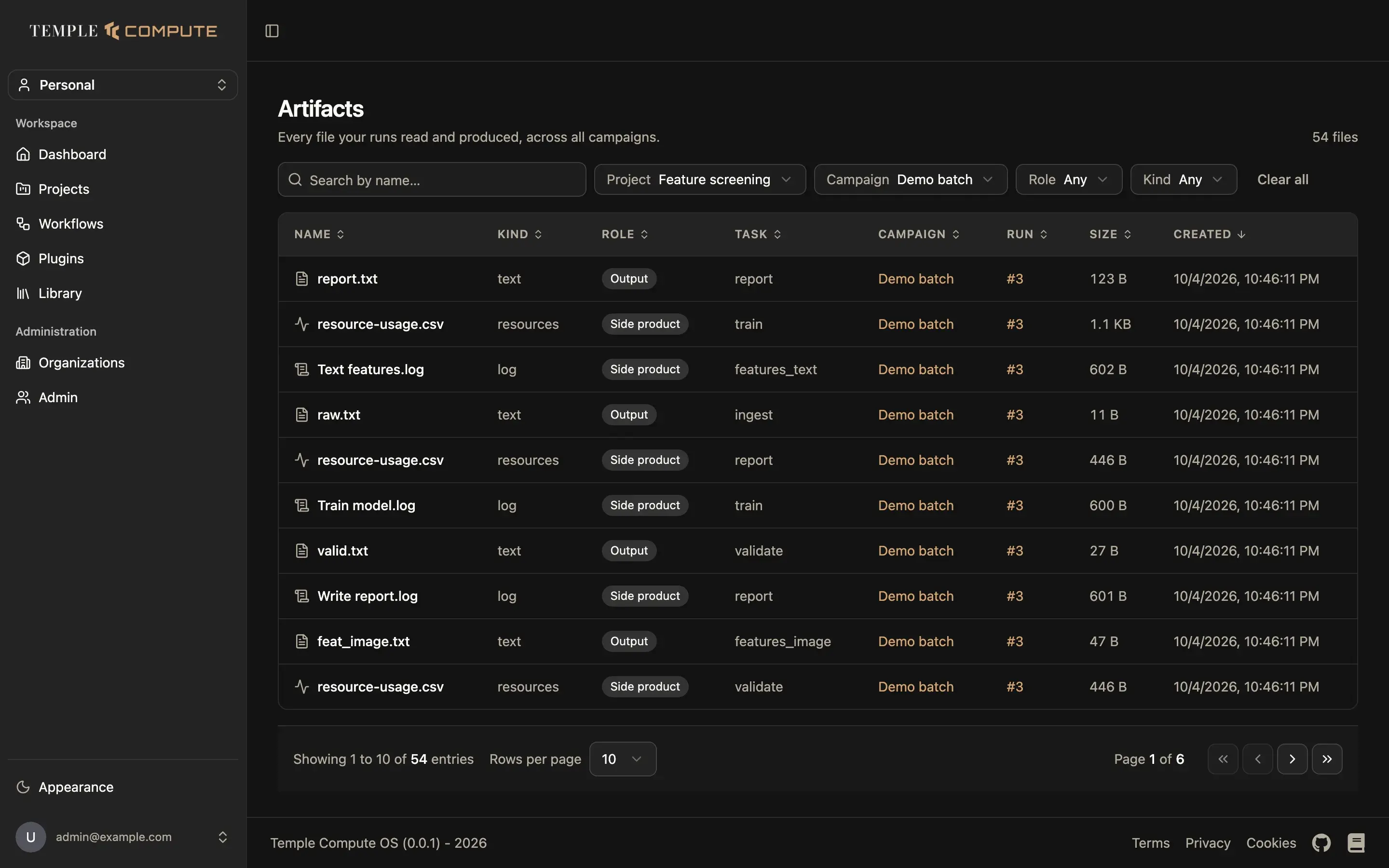
The page lists every file your runs read and produced, with its kind, role (input, output or side product), task, campaign, run, size and creation time. Click a column header to sort. Narrow the list with:
- Search by name
- Project, then Campaign within that project
- Role
- Kind
Clear all removes every filter. The filters are kept in the URL, so a filtered view, such as "all outputs of this campaign", can be bookmarked or shared.