Runs
Start a run from the canvas, follow it live, read its logs and resource usage, cancel it, and turn a past run back into a draft.
A run is one execution of a workflow. When a run starts, the app freezes a copy of the workflow as it is at that moment, so a run always shows exactly what was executed, even if the draft has changed since.
Runs are numbered per workflow (#1, #2, …). The draft is always #0.
Starting a run
Hover a task and click Execute from this task (the play icon in the toolbar
above the card). Before you click, hovering the button highlights every task the
run will include: the task you picked, the tasks upstream of it that it depends
on, and the tasks downstream that consume its outputs. This is the same rule as
horus run --trigger (see Running workflows).
The app checks the workflow, creates the run and switches the canvas to it.
A few things to know:
- Finished tasks are skipped. A task whose outputs already exist is not run
again. To force every task to run, turn on Force re-run all tasks in the
header's More (
…) menu before you start. - Debug logging in the same menu (when you have permission) makes the run record more detailed logs.
- One run at a time. While a run is in progress, the play buttons are turned off.
- You can start a run from a past run as well as from the draft. The new run starts from the workflow shown on the canvas.
- Compute and AI chat draw on your organization's monthly token allowance. The header shows how many tokens are left; it turns amber when the balance runs low.
Run view
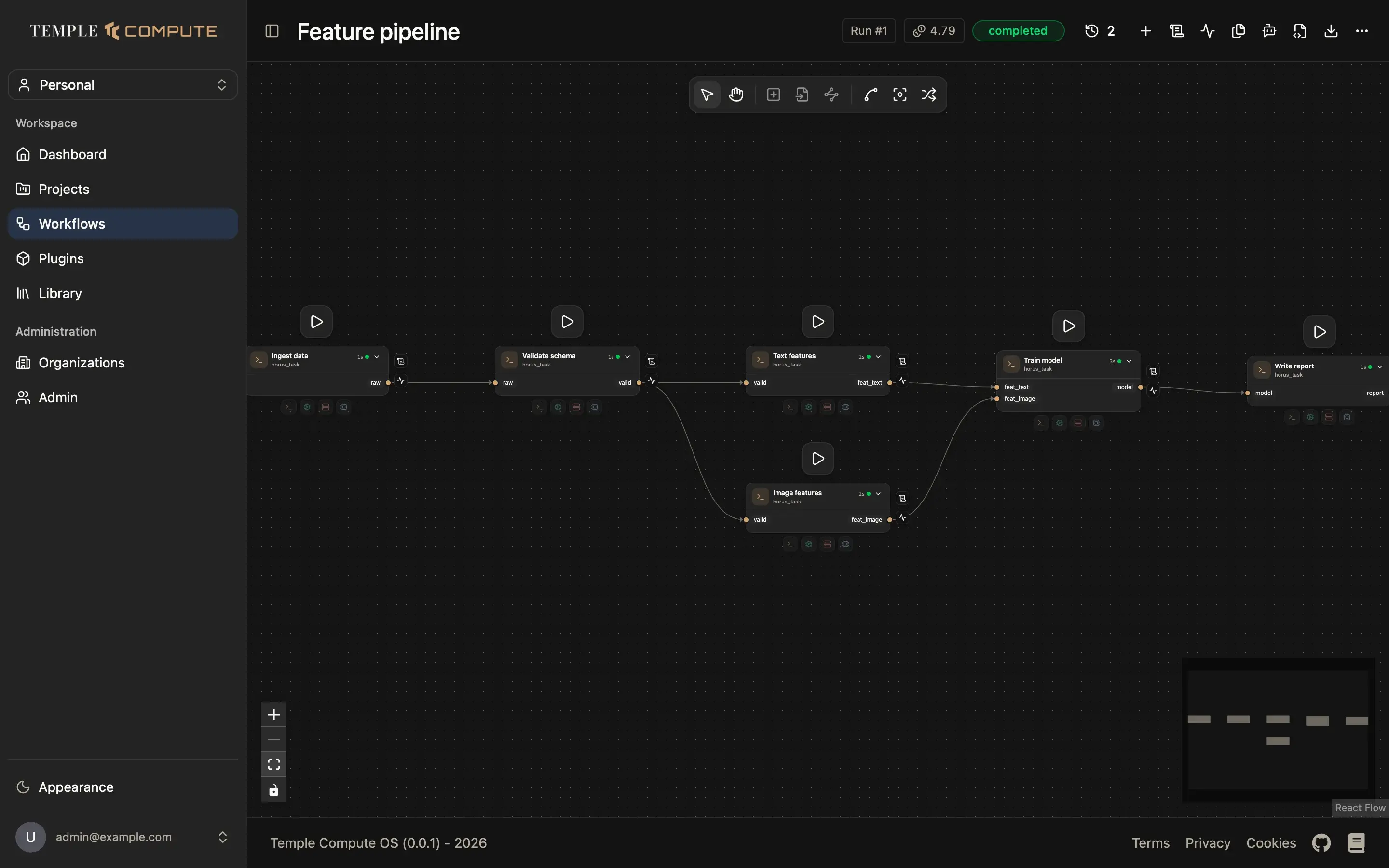
While a run is on screen the header badge reads Run #N and shows the run's status. The graph is read-only: the tools that add or connect blocks are turned off, and the edit and delete buttons disappear from the cards. You can still move blocks, auto-arrange them and change the view; that layout is saved with the run.
Each task card shows:
- A status dot (hover it to see the status) and how long the task took.
- A small tray next to the card with the files the task produced as a side effect, such as its log and its resource trace. Click one to preview it.
The page refreshes on its own while the run is in progress, so you can watch tasks move from queued to running to completed.
Run and task statuses:
| Status | Meaning |
|---|---|
idle | Not started. |
queued | Waiting for a free slot. |
running | In progress. |
completed | Finished successfully. |
failed | A task failed. |
canceled | Stopped by a user. |
partial | Some tasks finished and others did not. |
The run header

In run view, the header gains three buttons:
- + New design from this run: replace the draft with this run's workflow. See below.
- Logs (scroll icon): the run's log.
- Resource usage (pulse icon): measured CPU, memory and GPU per task.
Switching between runs
Click the run history button (clock icon) in the header. The list shows the
draft (#0) and every run with its status and start time. A check mark shows
which one is on screen.
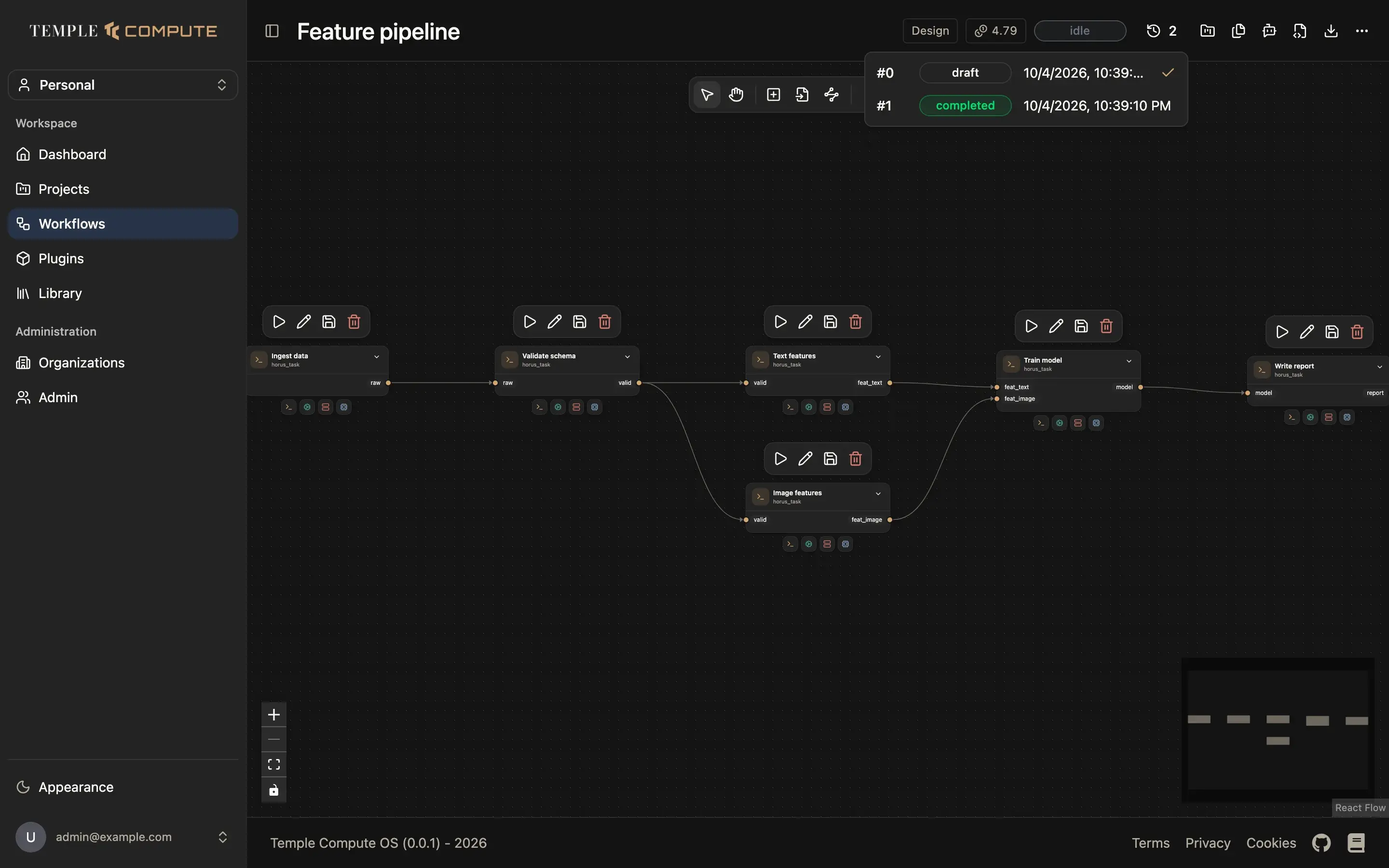
The run on screen is part of the page URL (?runId=…), so you can reload the
page, use the browser's back and forward buttons, or send the link to a
colleague, and the same run opens.
Logs
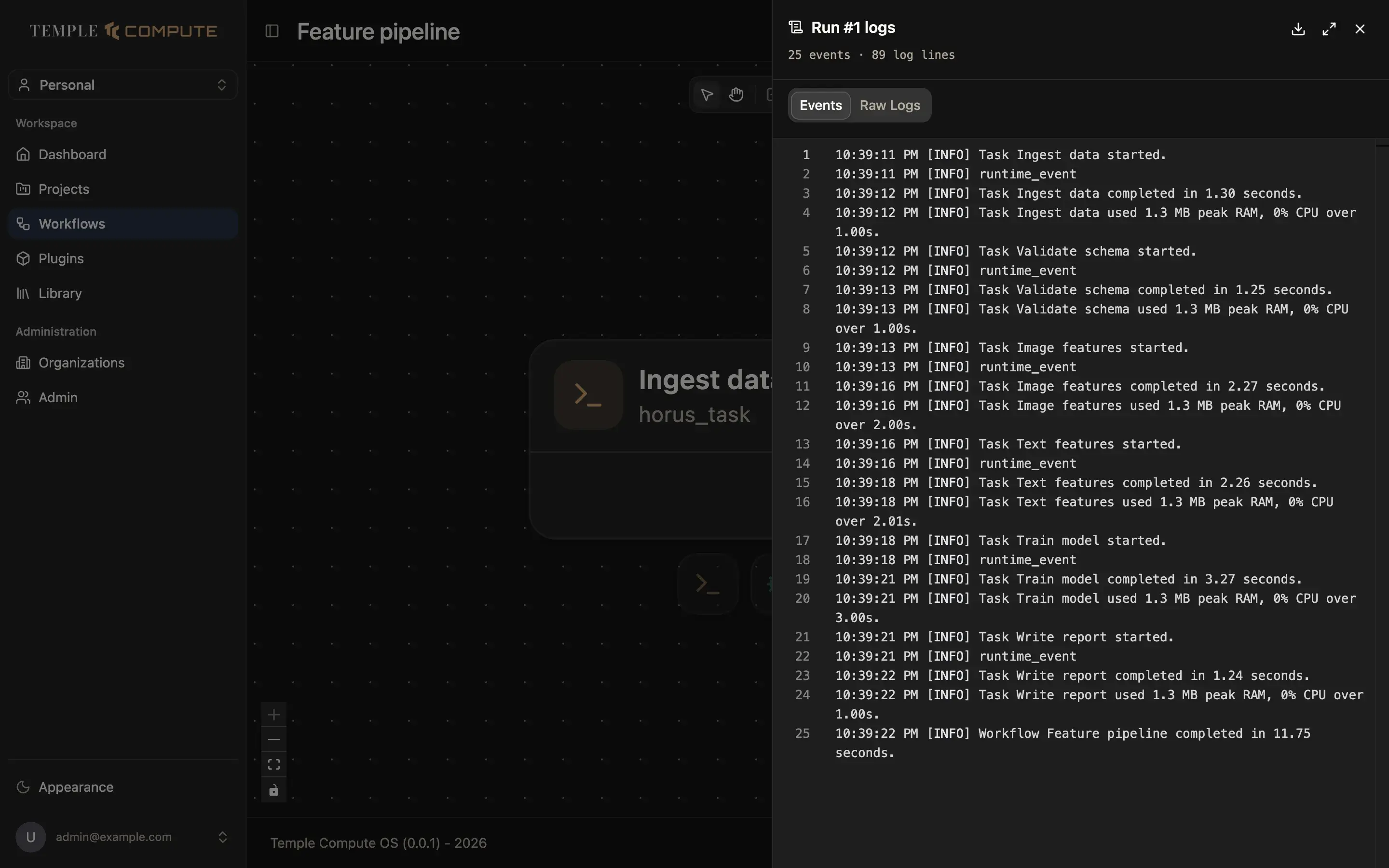
The logs panel has two tabs:
- Events: one line per event (a task started, completed, failed, how much memory and CPU it used), with timestamps.
- Raw Logs: the full log output of the run.
Use the buttons in the panel header to download the log or expand the panel to full screen.
Resource usage
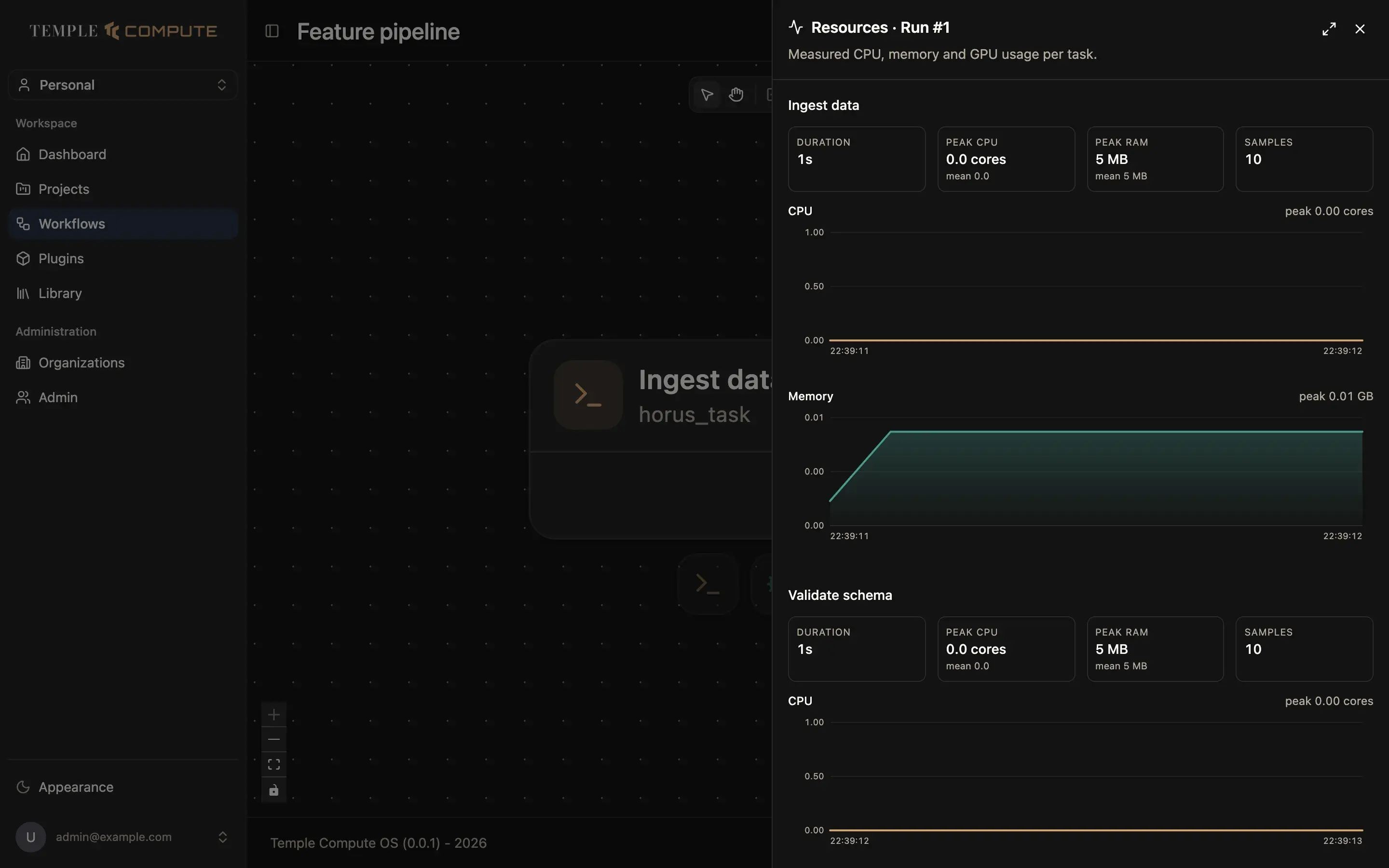
For each task, the resource panel shows its duration, peak and mean CPU, peak and mean memory, and the number of samples taken, with a CPU and a memory chart over time. GPU usage is shown when the task used a GPU. Use it to check whether the resources you requested match what the task actually needed.
Canceling a run
While a run is active, a spinner appears in the header next to the status. Hover the spinner: it turns into a red ×. Click it to cancel the run.
Start a new design from a run
To pick up from an earlier run, for example to retry with the exact settings that worked last week, open that run and click + in the header. The app asks you to confirm, then overwrites the draft with that run's workflow and switches to design mode.
This replaces the draft
Any changes in the current draft that you have not run yet are lost. If you want to keep them, export the workflow first (download icon in the header).