Library and plugins
Publish workflows to the Library and reuse other people's, and set up plugin environments that add task and artifact kinds.
The Library
The Library is where workflows are shared. A published workflow is a frozen,
numbered release (v1, v2, …) that anyone it is shared with can copy into
their own workflows.
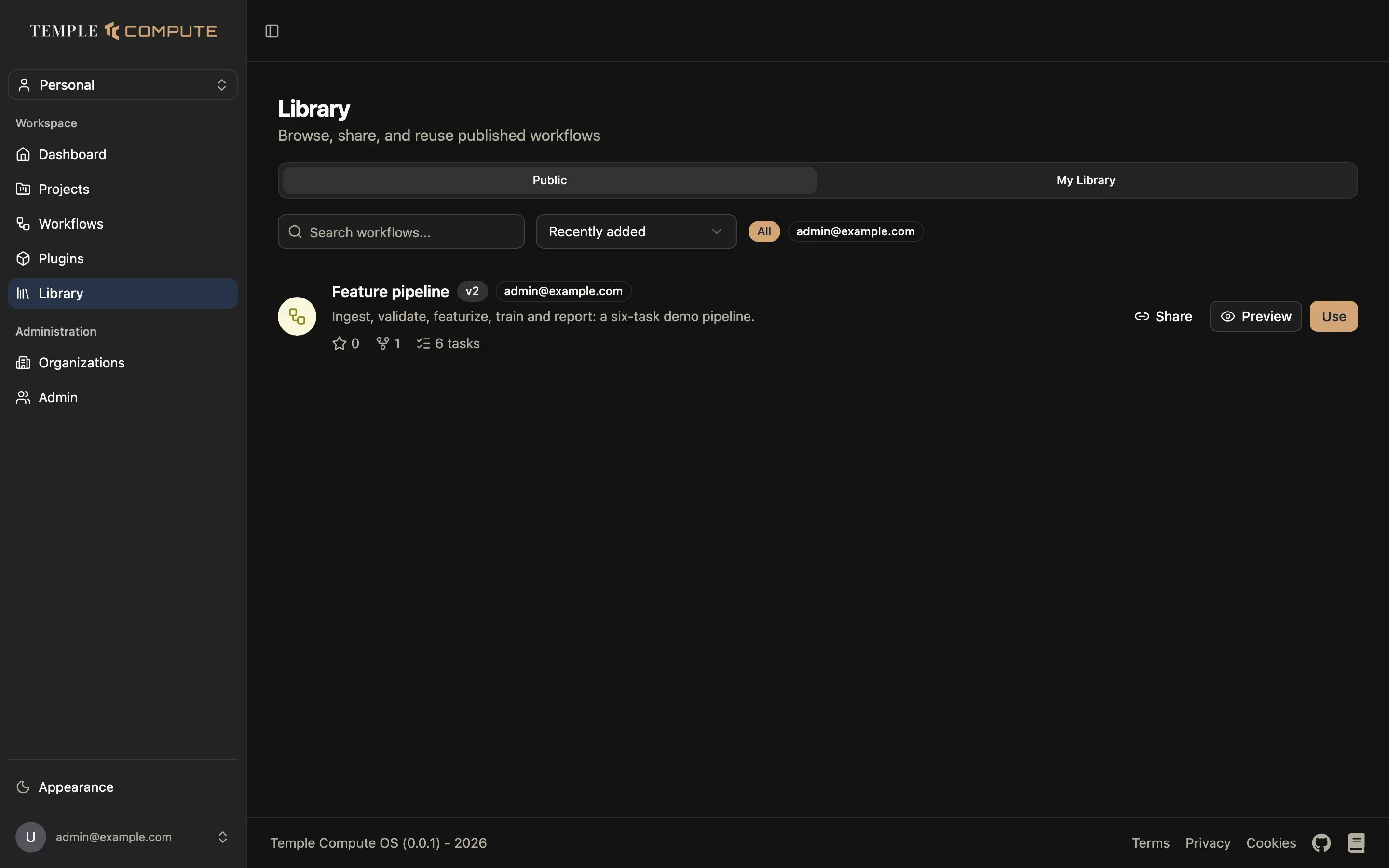
The page has two tabs:
- Public: every public release. Search by name, sort by Recently added, Most cloned or Most starred, and filter by the organization that published it.
- My Library: the releases you published.
Each release shows its version, publisher, description, stars, how many times it was cloned and how many tasks it has. On a release you can:
- Use: copy it into your workflows as a new workflow, then open it in design mode.
- Preview: see its tasks before you use it.
- Share: copy a public link to the release. Someone who follows the link and signs in lands on the Library with that release shown at the top.
- Star it, or unpublish a release you published.
Publishing a workflow
Open the workflow and choose Publish to Library from the More (…)
menu in the header.
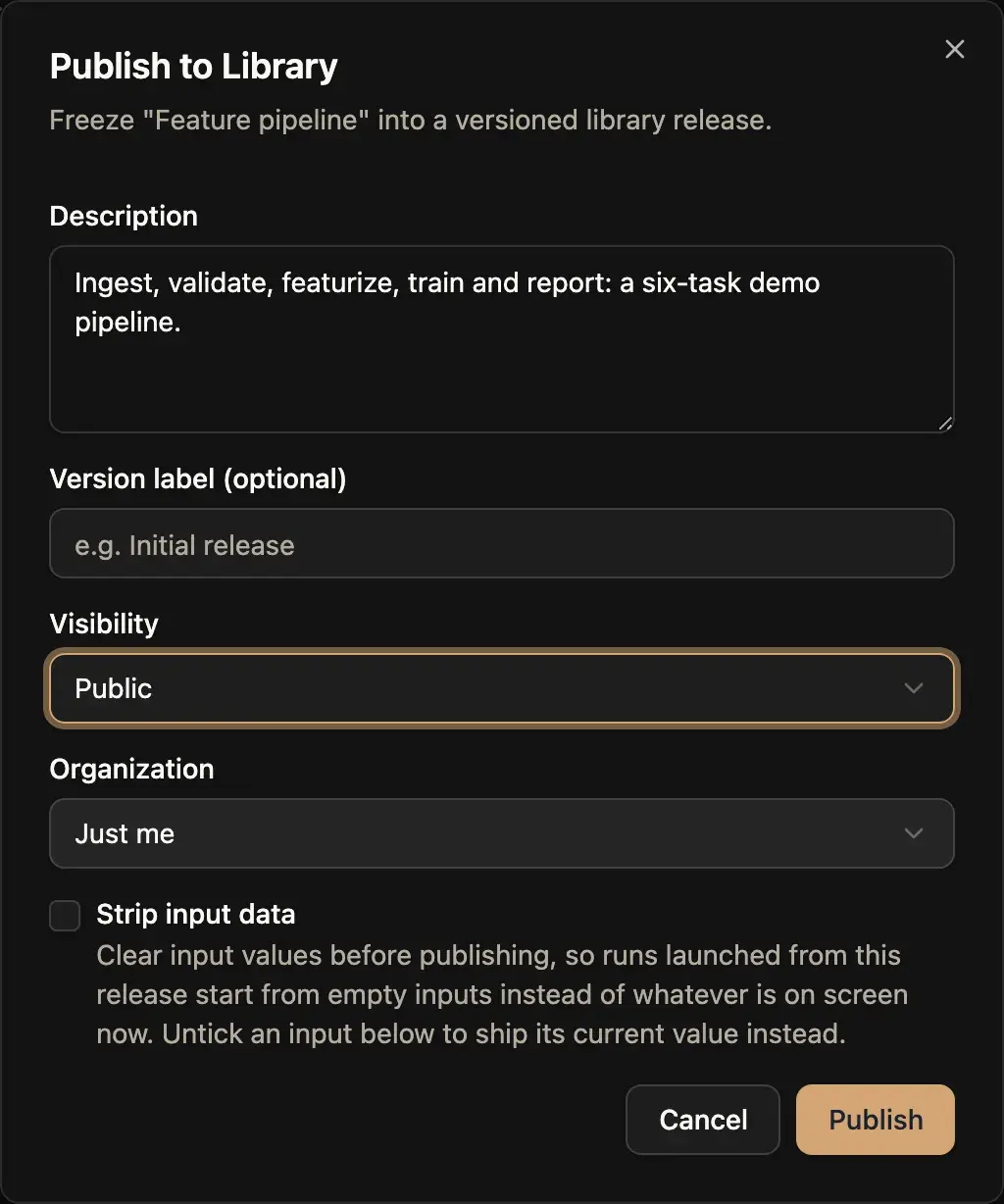
- Description and an optional Version label.
- Visibility: Private or Public.
- Organization: publish as yourself (Just me) or on behalf of one of your organizations, so its members can use it.
- Strip input data: clear the input values before publishing, so whoever uses the release starts from empty inputs. Untick an input in the list to ship its current value.
Each publish freezes the draft as it is now into a new version. Pinning a workflow to a project (see Projects and campaigns) uses the same kind of release, kept private to the project's organization.
Reusing blocks and workflows
The library also feeds the canvas:
- Save as reusable block on a task card saves that task's settings. They are offered as presets the next time you add or edit a task.
- Workflow from library, when you right-click the canvas, inserts a library workflow into the current one as a subworkflow.
Plugins
A plugin environment (or just plugin) is a set of Python packages that extend Horus: new task kinds, artifact kinds, targets such as Slurm or cloud machines, executors, and middleware. See Extending Horus for how to write one.
A workflow runs against one plugin environment, chosen when you create or import it (the Plugin field). The environment decides which task and artifact kinds the canvas offers. With no plugin picked, the workflow uses the default set.
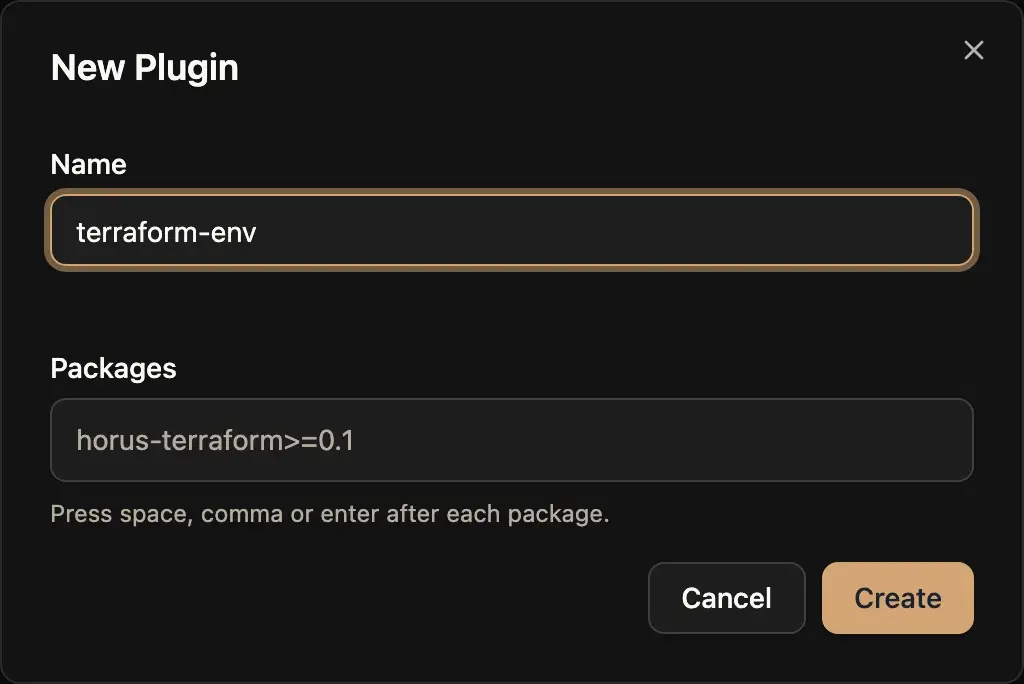
To create one, open Plugins in the sidebar and click New Plugin. Give it
a name and list the packages to install, as you would pass them to pip
(for example horus-terraform>=0.1). Press space, comma or Enter after each
package.
The app then installs the packages. The list shows each environment's status while it builds. Open an environment to see its packages, the task and artifact kinds and middleware it provides once it is ready, and the build log. If the install fails, the error is shown there.