Designing workflows
Build a workflow on the canvas in design mode. Add blocks and input artifacts, connect them, edit tasks, and use the YAML editor and AI chat.
Opening a workflow shows it on the canvas. What you can do there depends on which version of the workflow is on screen:
- Design mode shows the draft, the editable version of the workflow. The badge in the header reads Design.
- Run view shows one past or running run. The badge reads Run #N, and the graph is read-only. See Runs.
A workflow always opens on its draft. Your edits save automatically as you make them; there is no save button.
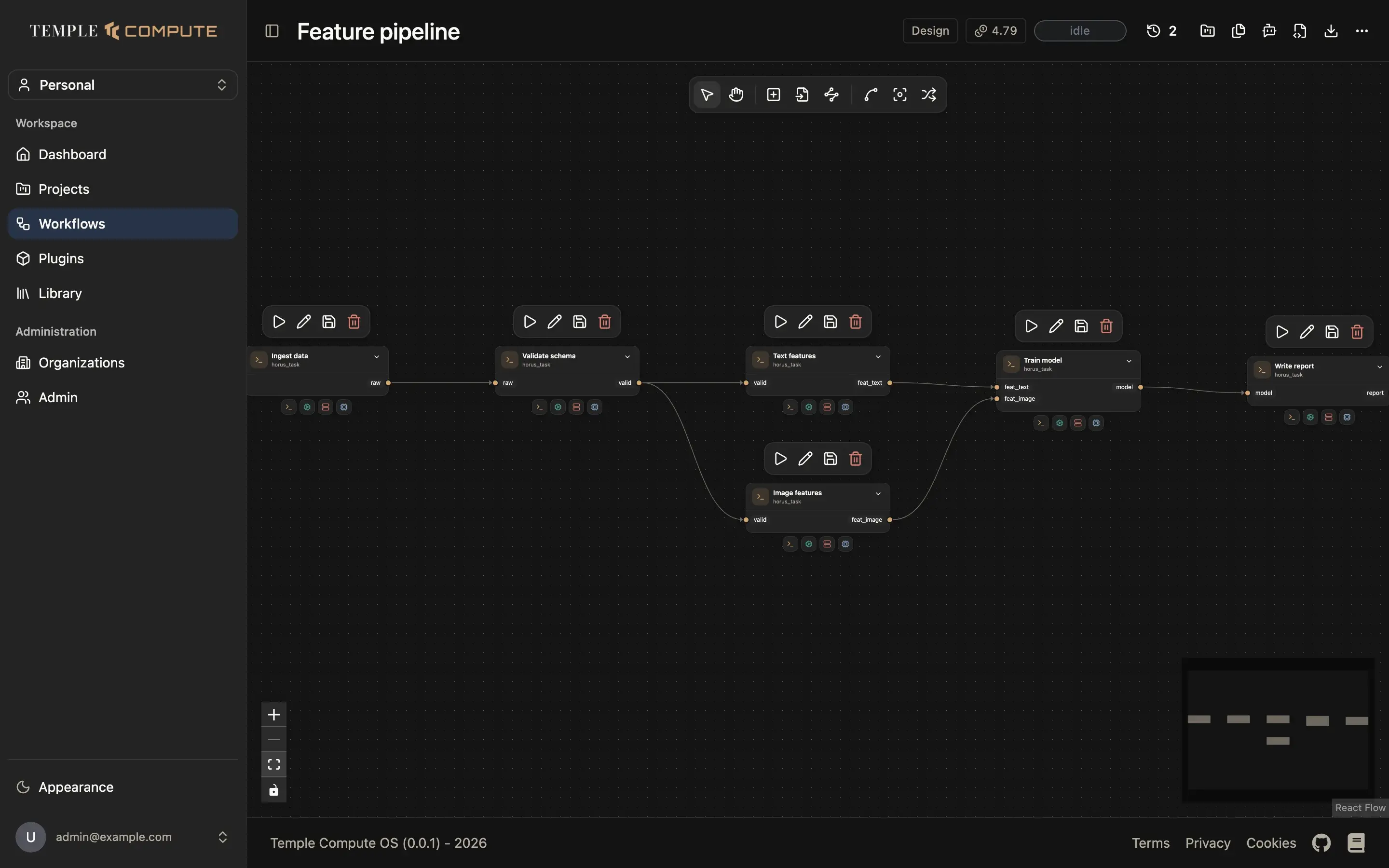
The draft
The draft is the one version of a workflow you can change. Every run starts from it: when you run the workflow, the app freezes a copy of the draft into a new run, so editing the draft afterwards never changes a run that already exists.
The draft appears as #0 draft at the top of the run history list (the clock button in the header). Pick it to get back to design mode from any run.
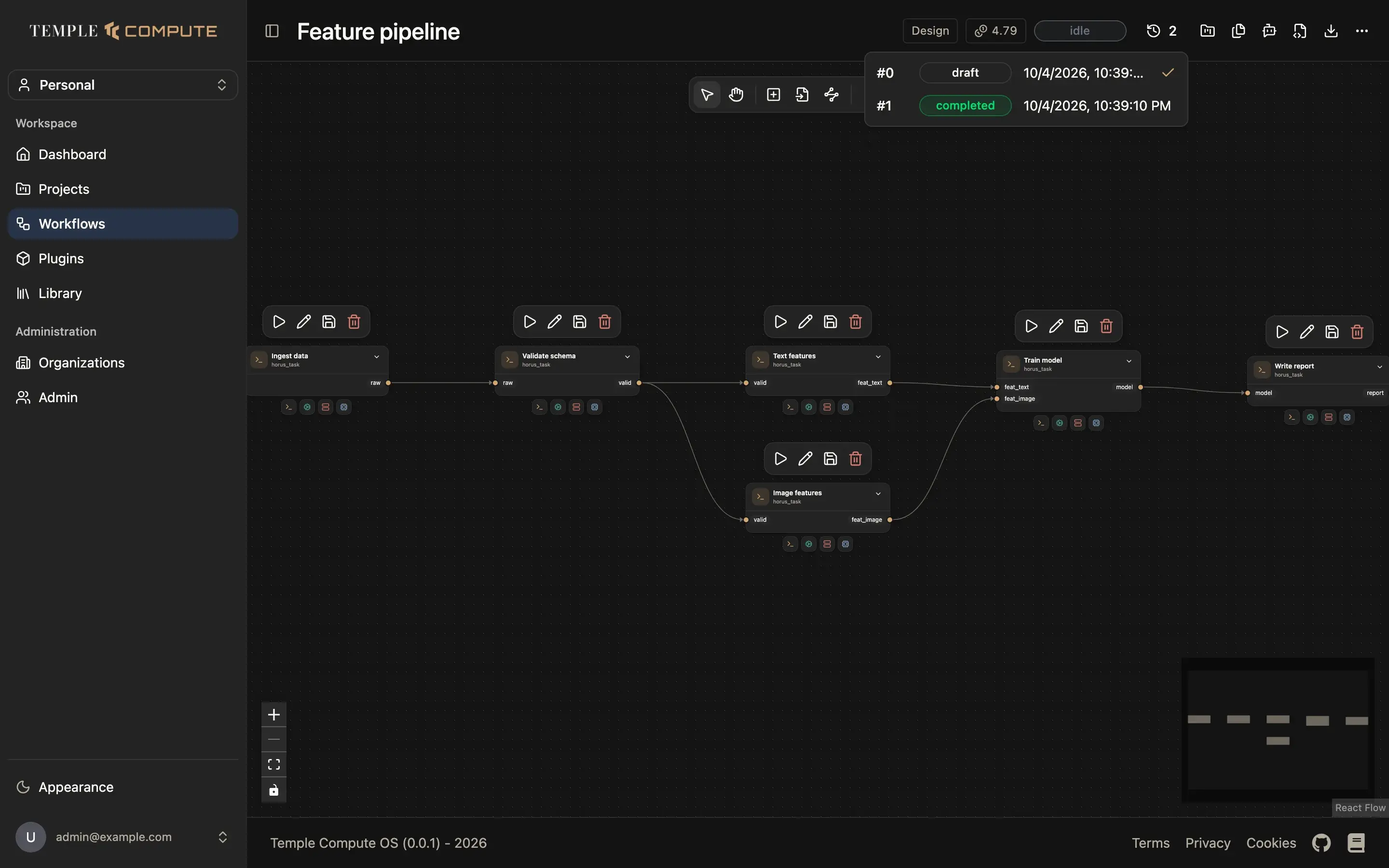
You can also go the other way and turn a run back into the draft. See Start a new design from a run.
The header

From left to right:
- Workflow name. Click it to rename the workflow (design mode only).
- Design / Run #N badge: which version is on screen.
- Token balance: tokens your organization has left this month, shared by compute and AI chat. Hover it for the breakdown.
- Status of the version on screen (idle, queued, running, completed, failed, canceled, partial).
- Run history (clock icon, with a count): switch between the draft and any run.
- Add to project (folder icon, design mode only): pin this version to a project. See Projects and campaigns.
- Artifacts panel, AI chat, YAML editor: toggle side panels.
- Export (download icon): download the workflow as a
.zip, with its input files. - More (
…): Publish to Library, Force re-run all tasks, Debug logging (when you have permission), and Delete workflow.
On a narrow screen the panel toggles move into the More menu.
The canvas toolbar

The floating toolbar at the top of the canvas picks what a click or drag on the canvas does. Each tool has a keyboard shortcut.
| Tool | Key | What it does |
|---|---|---|
| Select | V | Click to select, drag on empty canvas to draw a selection box, drag blocks to move them. |
| Pan | H | Drag to move around the canvas. You can also pan with the middle or right mouse button, or hold Space and drag. |
| New block | B | Click the canvas to place a new task there. |
| New input artifact | A | Click the canvas to place a workflow input (a file, folder, value, and so on). |
| Connect | C | Drag between ports to connect them, without moving blocks by accident. |
The last three buttons change only the view, so they also work on a run:
- Compact edges: draw one edge per pair of connected tasks instead of one per artifact.
- Hover fade: when you hover a block, fade everything not connected to it.
Hold
Ctrlor⌘to preview this without turning it on. - Auto layout: arrange the blocks automatically.
The New block, New input artifact and Connect tools are turned off in run view. Hover one to see why.
Other shortcuts:
| Shortcut | Action |
|---|---|
Ctrl/⌘ + A | Select every block. |
Ctrl/⌘ + G | Group the selected blocks into a subworkflow. |
Ctrl/⌘ + Shift + G | Ungroup the selected subworkflow. |
Esc | Clear the selection. |
Backspace / Delete | Delete the selected blocks or edges. |
The zoom controls and the minimap are in the bottom corners of the canvas.
Adding blocks
There are three ways to add something to the canvas:
- Pick New block or New input artifact in the toolbar, then click where it should go. On an empty canvas, the Add your first block button does the same.
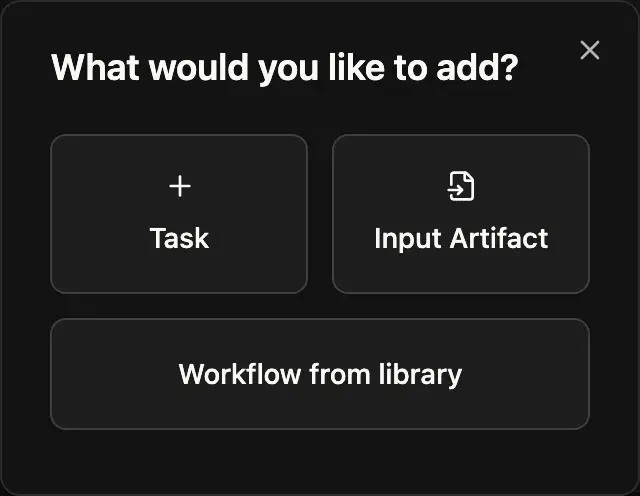
- Right-click an empty part of the canvas. A dialog asks whether to add a Task, an Input Artifact, or a Workflow from library (a saved workflow inserted as a subworkflow).
- Hover an edge and click Insert a block here to splice a task into an existing connection. The new task opens already wired to the artifact that was flowing along that edge.
Editing a task
Each task is a card on the canvas. Its name and kind are at the top, its input ports on the left and its output ports on the right. The icons under the card show its Runtime, Executor, Target and Resources; click one to edit that part directly.
A toolbar floats above each card:
| Button | What it does |
|---|---|
| Execute from this task (play icon) | Start a run. Hover it first to highlight every task that run will include. |
| Edit task (pencil icon) | Open the task editor. |
| Save as reusable block (disk icon) | Save this task to your library, so you can reuse it in any task later. |
| Delete task (bin icon) | Remove the task and its connections. |
The task editor walks through five steps. You can jump between them on the left, and Save at any point.
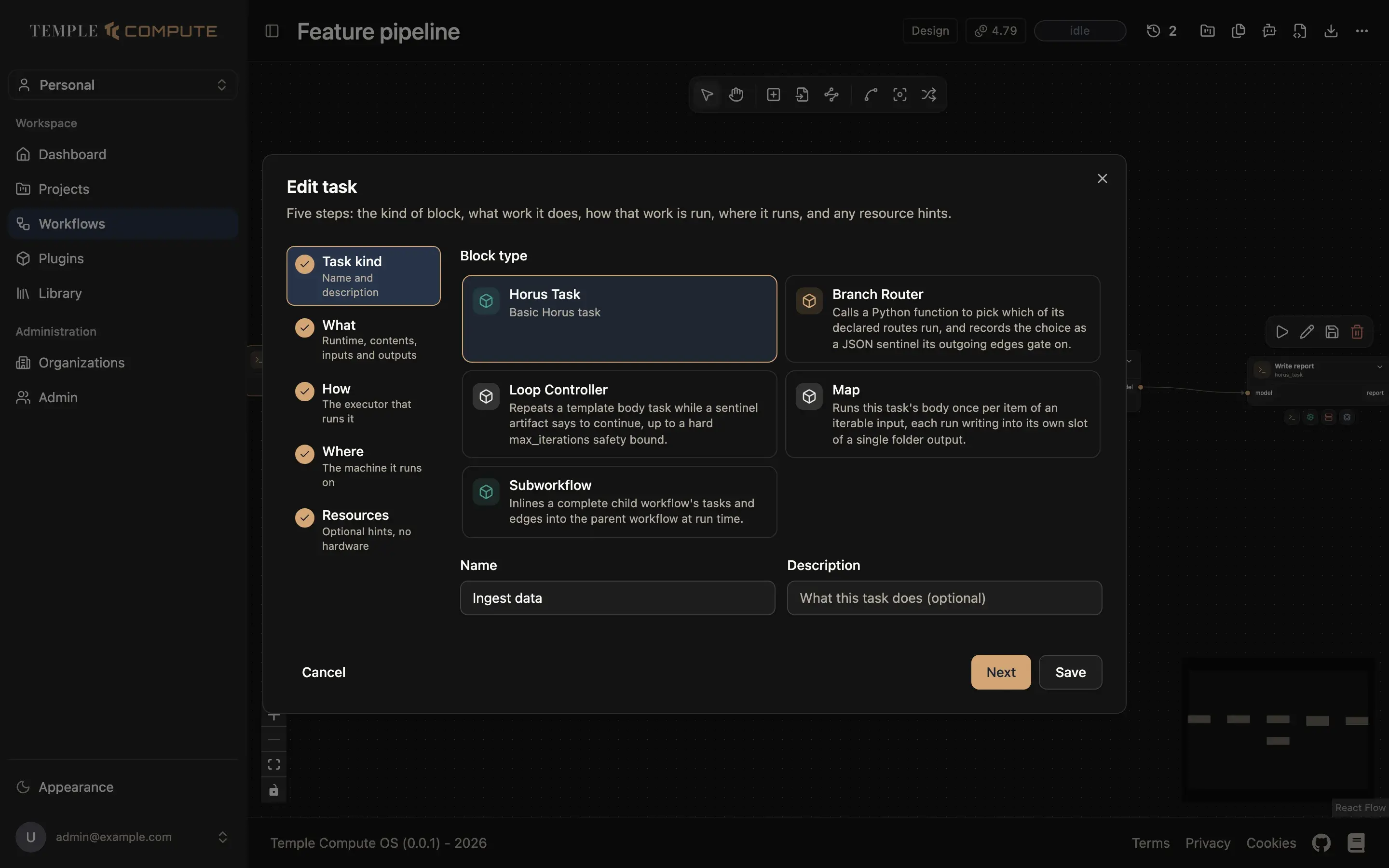
- Task kind: the block type (a plain Horus task, a branch router, a loop controller, a map, a subworkflow, or any kind a plugin adds), plus a name and description.
- What: the runtime (for example a shell command or a Python function), its contents, and the task's inputs and outputs.
- How: the executor that runs it.
- Where: the target machine it runs on.
- Resources: optional hints such as CPUs, GPUs, memory and walltime.
These map one-to-one onto the fields of a task in YAML; see Core concepts for what each one means.
Connecting tasks
Drag from an output port on one card to an input port on another. The edge carries that artifact from the producing task to the consuming one, and also decides the order the tasks run in.
To remove a connection, hover the edge and click Disconnect, or select it
and press Delete.
To feed the same artifact into several tasks, drag a variable off its card and drop it on the canvas. It becomes a standalone artifact node that you can wire to more than one block.
Grouping into subworkflows
Select two or more blocks and click Group in the selection toolbar (or
press Ctrl/⌘ + G). The blocks collapse into one subworkflow card. Select
a subworkflow and click Ungroup to turn it back into plain blocks.
Editing as YAML
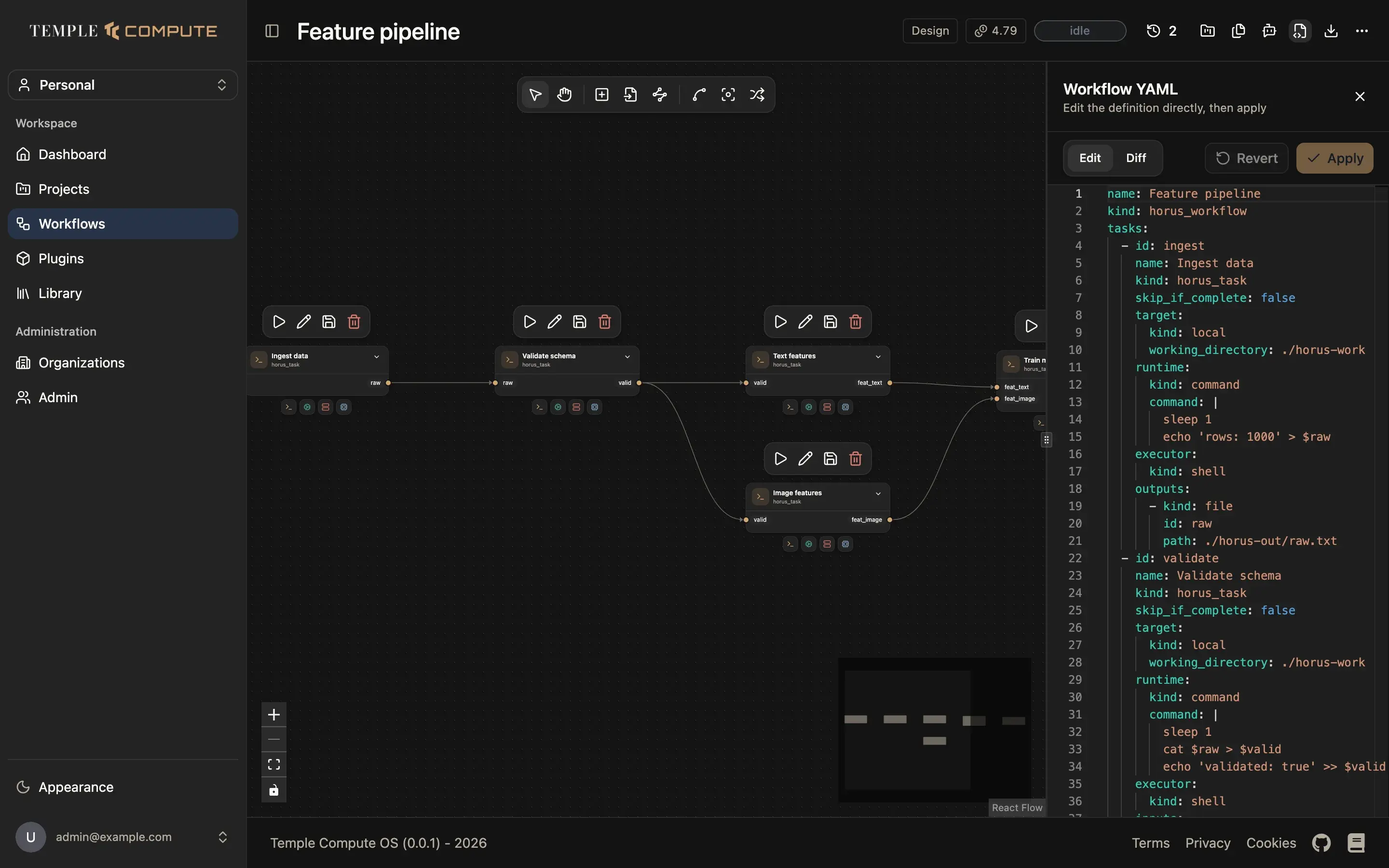
The YAML editor panel shows the draft as a Horus workflow file, in the same
format horus run reads. Typing changes only the text in the panel. Switch to
Diff to compare your edits with the saved draft, then click Apply to
write them to the workflow, or Revert to throw them away. Apply works only in
design mode, and only once the YAML is valid. The panel is shown to users with
permission to edit YAML.
Building with AI
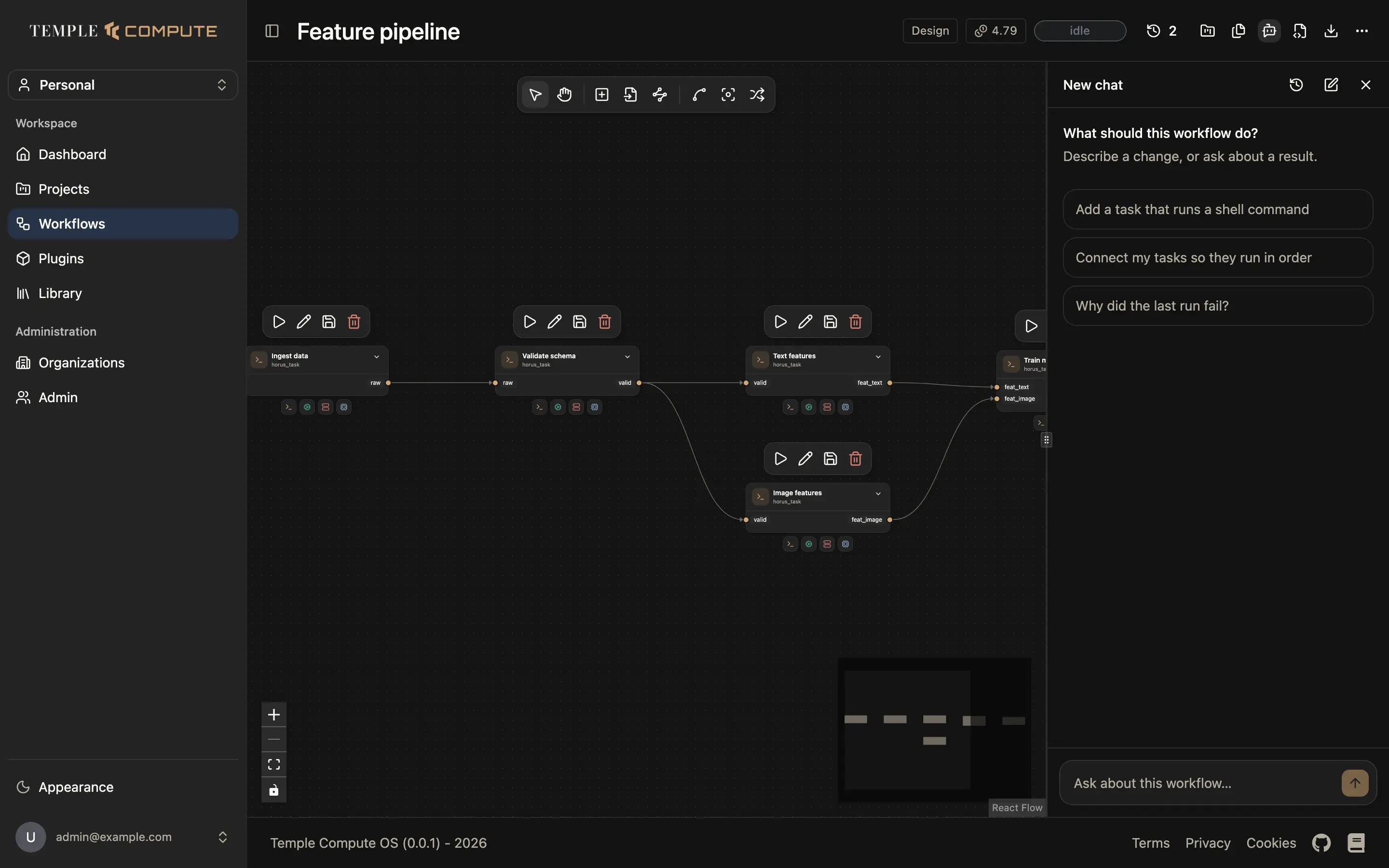
The AI chat panel lets you describe a change in plain language ("Add a task that runs a shell command", "Connect my tasks so they run in order") or ask about a result ("Why did the last run fail?"). Changes the assistant proposes, such as editing the draft or starting a run, are shown as cards you approve or decline before anything happens. A proposed YAML change opens in the YAML editor so you can review it there. Earlier conversations are under the history icon in the panel header.
Side panels
The artifacts panel, the AI chat and the YAML editor open as panels to the
right of the canvas. Drag the handle between a panel and the canvas to resize
it, and click × (or press Esc in the artifacts panel) to close it.